One window, divided by topic. It opens with the Settings button of the BIMit panel and replaces the Config MCP and Account windows.
| Topic | What you find |
|---|---|
| Account | Your profile, access in the beta and privacy (Account). |
| Your AI | The AI apps connected to BIMit (Your AI). |
| Tools | The packages, on or off for every AI (the same switches as in the BIMit pane and in All tools). |
| Projects | The Commesse and Arrivi folders, how many projects there are, Change… to keep them in another folder, and the project of the active model (The Projects page). |
| Folders | BIMit's folders on your PC. |
| Language | BIMit's language. |
| Advanced | The advanced options and the automatic problem reports. |
Account#
The Account topic.
| Item | What it does |
|---|---|
| Name, e-mail, city | Your profile data. |
| Access in the beta | It says that during the beta you can use every feature of the public beta, with no limits; if you are not signed in, it asks you to sign in (Access in the beta). |
| Receive news, guides and offers by e-mail | Marketing consent: give it or withdraw it here. |
| Send usage statistics | Which features you use (never the content of models). Untick it to stop sending them. |
| Privacy policy · Terms of use | Open the texts. |
| Version · Revit | BIMit and Revit version, and the update status. |
| Check for updates | Checks now whether there is a new version. |
| Log folder | Opens the technical log folder (useful for support). |
| unibim.io | Opens the website. |
| Sign out | Signs out of the account on this PC. |
| Delete account… | Deletes account, profile, statistics, messages and reports immediately and permanently. Asks for confirmation. |
Feedback#
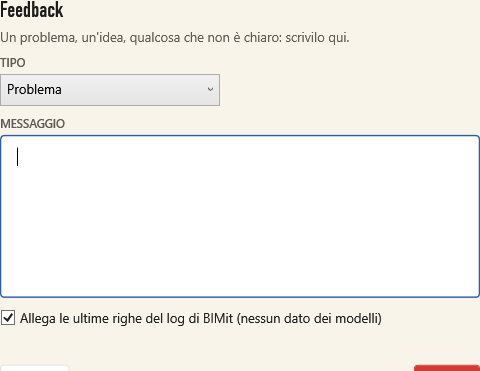
Choose the TYPE (Problem, Idea, Question, Other), write the MESSAGE and click Send. Attach the last lines of the log helps to understand an error: it contains only BIMit technical data, never data from your models. Paths, file names and e-mails in the log are hidden before sending.
Reporting a problem#
Most of the time you do not need to write anything:
- Unexpected errors. If a command, a window or an AI tool stops with an unexpected error, BIMit reports it to the developer by itself, only once (the same error is not repeated), if you said yes: the first time, the BIMit pane asks you (Yes, send or No, keep them here).
- Your AI. If a BIMit tool fails, or you tell it something does not work, your AI reports it with the tool Report a problem, with a summary and the steps to reproduce it. It does not ask you. These too are sent only if you said yes to automatic reports; otherwise they stay on this PC until you press Send now.
A report holds the kind of error, the places in BIMit's code involved, the AI's latest actions (only the tool's name and the outcome) and, for the AI's, its summary and the last lines of the log cut to time, level, place in the code and type of error. Never the content of your models: user folders, the names of project folders, models and files, e-mail addresses and tokens are hidden before the report leaves your PC. Automatic and AI reports are deleted after 12 months: see the privacy policy.
In Settings › Advanced › Automatic reports:
| Item | What it does |
|---|---|
| Switch | On: reports go by themselves. Off: they stay on this PC. Off until you say yes (here or in the BIMit pane): it does not follow Send usage statistics. |
| Waiting · Send now | How many reports wait (off, offline or signed out) and the button to send them now. |
| Latest reports | Date, code, summary and state (waiting, sent, not sent). |
| Send a report… | Opens the Feedback window to write yourself. |
In the BIMit pane, among the AI's latest actions, a failed action shows Reported once its report was sent.
Update#
| Button | What it does |
|---|---|
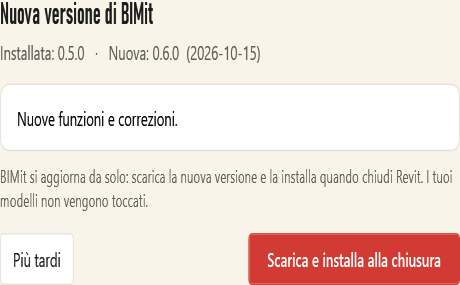
| Download and install on close | Usually not needed: BIMit does this by itself at startup. Downloads the new version, verifies its integrity and installs it when you close Revit. Models are not touched. If the update is already downloaded, the window says so. |
| Later | Closes. If the update is already downloaded (Update ready) it installs anyway when you close Revit; otherwise BIMit tries again by itself at the next startup. |