The Model panel has three buttons that work on the whole model: Unpin all, Move level and Export for AI.
Unpin all#
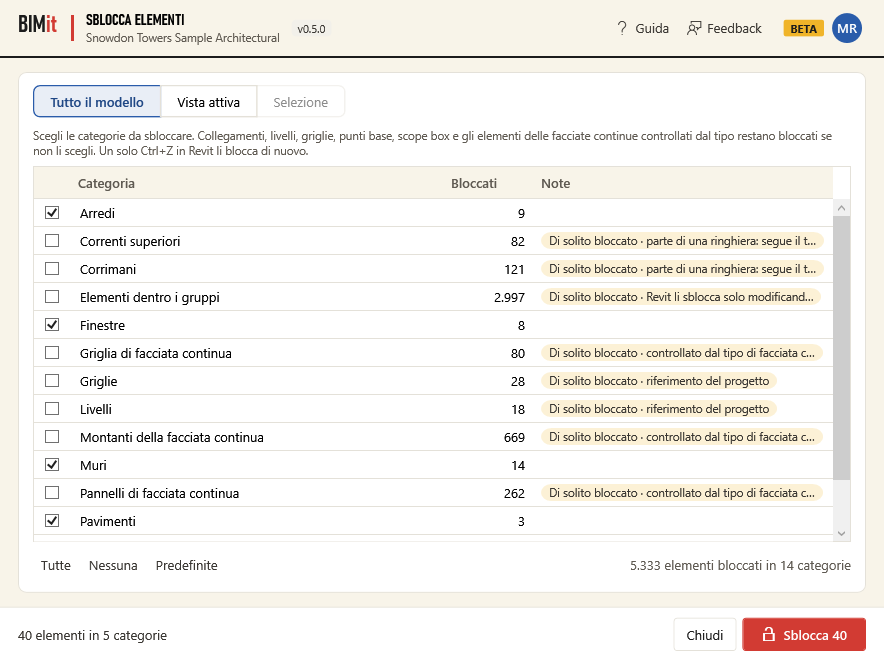
Unpins in one go the pinned elements of the model, of the active view or of the selection. BIMit counts them category by category and you choose which ones to unpin. Links, levels, grids, scope boxes, base points, curtain wall elements and railing parts stay pinned unless you choose them. Elements inside groups are never unpinned from here. It opens with the Unpin all button in the Model panel. The window is called Unpin elements.
Before you start
- Open a project. With a family open, BIMit does not open the window.
- Want to work only on some elements? Select them in Revit before clicking the button. While the window is open, Revit waits and the selection does not change.
- In a workshared model, synchronize first. Elements in use by others or changed in the central model are not unpinned.
Top: where to look#
| Item | What it does |
|---|---|
| Whole model | Counts the pinned elements in the whole project. It is the choice on opening. |
| Active view | Counts only the elements the active view shows. Hover to read the view name. If BIMit cannot read the view, it tells you and goes back to Whole model. |
| Selection (N) | Counts only the elements you had selected in Revit (N = how many). Grayed out if you had selected nothing. |
When you change the scope, BIMit counts again. The checks you changed stay while the window is open.
The categories#
Here there is one row for each category with pinned elements, sorted by name.
| Column / button | What it does |
|---|---|
| Checkbox on the left of each row | Picks the category to unpin. On opening all are checked, except those that usually stay pinned (see below). With several rows highlighted (Ctrl or Shift), Space checks them all. If they were all checked already, it unchecks them. |
| Category | The name in Revit's language. Imported and linked CAD files, Linked PDFs and images and Elements inside groups have a row of their own. Elements without a category are in (no category). |
| Pinned | How many pinned elements the category has in the chosen scope. |
| Notes | On a yellow background: Usually pinned and the reason. In a workshared model: N not editable now, i.e. the elements you cannot unpin right now. Hover to read the whole note. |
| All | Checks all categories. |
| None | Unchecks everything. |
| Defaults | Goes back to the initial choice: all categories except those that usually stay pinned. |
| N pinned elements in M categories | The total for the chosen scope, bottom right. |
| No pinned elements in the model. | Appears in the middle of the empty table if nothing is pinned. With the other scopes it says in the active view or in the selection. |
Click Category, Pinned or Notes to sort.
Categories that usually stay pinned
| Rows | Note |
|---|---|
| Revit links, point clouds, coordination models, Imported and linked CAD files, Linked PDFs and images | link |
| Levels, grids, scope boxes | project reference |
| Project base point, survey point | project coordinates |
| Curtain wall panels, mullions and grids | controlled by the curtain wall type. If you unpin them, they no longer follow changes to the type. |
| Railing parts (supports, handrails, terminations) | part of a railing: follows the railing type. If you unpin them, they detach from the type and Revit regenerates the railings. With many elements this can take minutes. |
| Elements inside groups | Revit unpins them only by editing the group. BIMit never unpins them, even if you check the row. |
You can check them anyway. Before unpinning, BIMit lists them and asks for confirmation.
Window footer#
| Item | What it does |
|---|---|
| Message on the left | How many elements and categories you have chosen, or Choose the categories to unpin. While counting it shows Counting pinned elements..., while unpinning Unpinning.... After unpinning it shows Unpinned N elements. or No elements unpinned. |
| Close | Closes. While BIMit counts or unpins, the window does not close. |
| Unpin N | Unpins the elements of the checked categories (N = how many). Grayed out if you have chosen nothing. |
When you click Unpin#
- Did you check categories that usually stay pinned? BIMit lists them and asks Unpin them anyway?. With No nothing changes.
- BIMit checks each element. It skips elements inside groups. In a workshared model it also skips those in use by another user and those changed in the central model but not yet reloaded.
- It unpins all the other elements in a single Revit operation, BIMit: unpin elements. If Revit refuses an element, BIMit puts it among the errors and continues with the others. If at the end Revit reports an error, it undoes the whole operation.
- The table updates. The unpinned categories disappear. Only the elements still pinned remain.
Then the report appears:
| Row | What it says |
|---|---|
| Unpinned N elements. | How many elements were unpinned. |
| Revit rolled back the operation: no elements were unpinned. | Revit reported an error and undid everything. Below you find Revit's messages (at most 6). |
| No elements were unpinned. | Nothing changed, for example because all the elements had to be skipped or Revit refused them. |
| N elements of the workshared model not unpinned: | The skipped elements, with ID and reason. The reasons are in use by (with the colleague's name), changed in the central model: synchronize first and inside a group: unpin it by editing the group. It shows at most 8. It also appears in a non-workshared model, for elements inside groups. |
| Errors on N elements | The elements Revit refused to unpin, with ID and message (at most 8). The others are unpinned, unless Revit rolls back the operation. |
| When the window is closed, the elements not unpinned stay selected in Revit. | Appears when some element was not unpinned: on closing, BIMit selects them. |
| One Ctrl+Z in Revit pins them again. | Reminds you how to go back. Appears only if something was unpinned. |
When you close the window, BIMit selects in Revit the elements not unpinned (skipped, with errors or rolled back by Revit) and Revit shows them to you. This applies only to the last unpin.
Good to know#
- Each click on Unpin is a single Revit operation. Once the window is closed, one Ctrl+Z pins the elements of that unpin again. In Revit's Undo list the operation is called BIMit: unpin elements. If you clicked Unpin several times, you need one Ctrl+Z for each.
- The Revit operation is all or nothing: if Revit reports an error when committing the unpin, it undoes the whole operation and no element changes. Elements skipped or refused one by one don't stop the others. Revit warnings don't stop the unpin.
- If the unpin stops because of an error, BIMit shows Error while unpinning: no element was modified. The model stays as it was.
- BIMit changes only the pin. It does not touch positions or parameters and does not write files.
- Elements inside groups are never unpinned from here: edit the group in Revit. If the group itself is pinned (and is not inside another group), it has its own row like the other categories and is unpinned normally.
- Workshared model: BIMit skips the elements you cannot edit right now and lists them, so the rest of the unpin does not fail. In the Notes column you see them beforehand, as N not editable now. Synchronize or ask your colleague to relinquish them, then repeat: the window counts only those still pinned. Your colleagues see the unpin when you synchronize.
- With Active view BIMit counts only what the view shows. Elements hidden in the view are not counted.
- The checks are not saved. Next time you open the window you start again from the Defaults choice.
Move level#
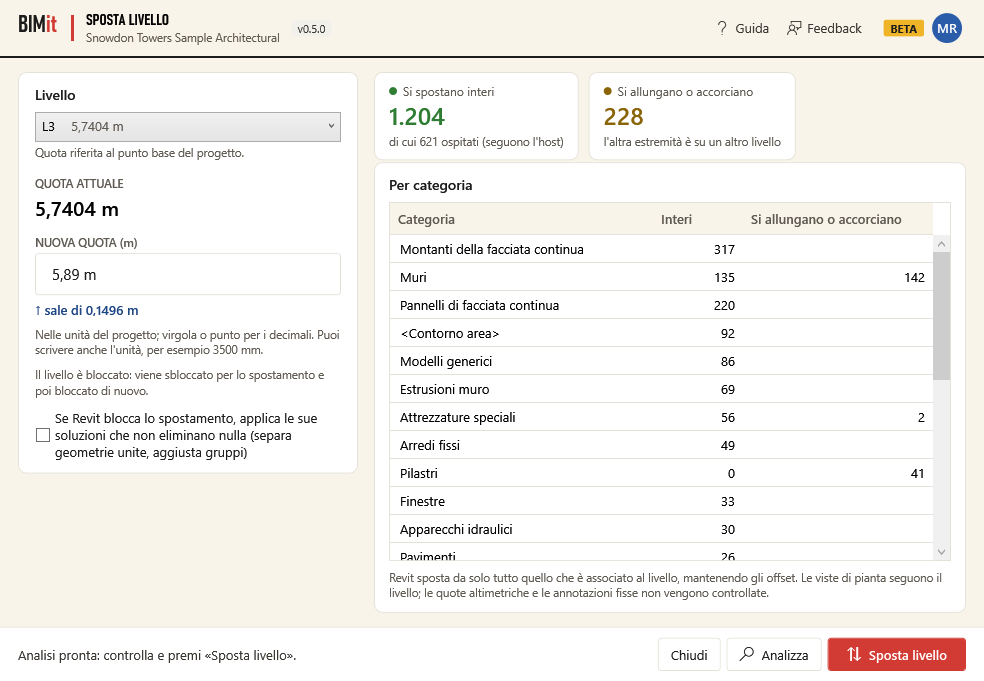
Moves a level to a new elevation together with everything that depends on it. BIMit changes only the elevation of the level: the associated elements are moved by Revit, and their offsets stay as they were. Before moving you can see how many elements, category by category, go up or down as a whole and how many stretch or shorten, because their other end is on another level. It opens with the Move level button in the Model panel.
Before you start
- You need a project with at least one level. In a family file the command does not start.
- The window starts from the level you have selected in Revit. If you have selected none, it starts from the level of the active view (for example a plan) or from the lowest level.
- In workshared models synchronize first: if the level was changed in the central model, BIMit does not move it.
Left: level and elevation#
| Item | What it does |
|---|---|
| Level | The level to move. The list goes from the lowest to the highest, with the elevation of each one next to its name. |
| Elevation relative to the project base point / Elevation relative to the survey point | Where the level's elevation is measured from. It depends on the level type. The new elevation is measured from the same point. |
| CURRENT ELEVATION | The current elevation, in project units. If the project format rounds it, BIMit uses a finer precision (more decimals, or smaller fractions for feet and inches) when that shows it exactly. If no precision shows it exactly, it stays in the project format. The same applies to the elevations in the list and in the box. |
| NEW ELEVATION (…) | The target elevation. The project unit is in brackets. When you choose a level, the box contains its current elevation, already selected and ready to be overwritten. For decimals both a comma and a period work, and you can also type the unit (for example 3500 mm): the note under the box reminds you too. Enter starts Analyze. |
| ↑ up by … / ↓ down by … | The displacement, computed as you type. It can also say: = same as the current elevation, Enter the new elevation. (empty box) and Invalid elevation. (the text cannot be read as a length). A small displacement is never shown as zero: below the finest precision you read less than …. |
| The level is pinned: … | Appears only if the level is pinned. BIMit unpins it to move it and then pins it again. |
| If Revit blocks the move, apply its fixes that delete nothing (unjoin geometry, fix groups) | Unchecked on opening. If you check it and Revit gives an error for which it proposes a fix that deletes nothing (for example joined elements that can no longer be cut, or groups of the same type that have become different), BIMit applies the fix as Revit's dialog proposes it: it unjoins the geometry or lets Revit fix the elements (for example fixes the groups). It never deletes elements. |
Right: the analysis#
The cards and the table fill up when you click Analyze. Before that you see — and the message Choose the level and the new elevation, then click “Analyze” to see what moves. If you change the level or the elevation, the analysis resets. The analysis shows only numbers: it does not list or select the elements.
| Item | What it does |
|---|---|
| Move as a whole | Elements tied only to this level. They go up or down with it and their offsets don't change. On the card, under the number, you read with the level, offsets unchanged or, if there are any, of which N hosted (follow the host): families hosted by a wall, a floor or another element, which move with their host. |
| Stretch or shorten | Elements with one end on this level and the other on another level, for example a wall with its base here and its top constraint on the floor above. Their height changes. |
| In use by others | Appears only in workshared models, and only if there are any. These are elements that should move but that another user is using: Revit might refuse the change. |
| By category | A table with the columns Category, Whole and Stretch or shorten. The categories with the most elements are at the top. Click a header to sort. |
| Note under the table | Revit moves everything associated with the level by itself, keeping the offsets. Plan views follow the level. Spot elevations and fixed annotations are not checked. |
If no element depends on the level you read No element is associated with this level: only the level moves (with its views).
The analysis counts only the model elements tied to the level: through a level parameter (base, top, reference level, room level…) or because it is their level. Annotations, other levels and grids are not counted.
Window footer#
| Item | What it does |
|---|---|
| Message on the left | Tells you what to do: Enter an elevation different from the current one., Click “Analyze” to see what moves, or “Move level”., Analysis ready: check and click “Move level”. While BIMit analyzes you read Analyzing the elements of level … and then, every 500 elements, Analysis: N elements read.... While moving you read Moving level …. Below, a busy bar runs (without percentage). After a successful move the message says Level “…” moved to …. |
| Close | Closes the window. |
| Analyze | Reads the model and fills the cards and the table. Changes nothing. |
| Move level | Moves the level to the new elevation, after a confirmation. Active only if the new elevation differs from the current one. If you haven't clicked Analyze yet, the analysis starts by itself. |
While BIMit analyzes or moves, the buttons, the level list and the elevation box are disabled and you cannot close the window.
What happens when you click Move level#
- The confirmation. The BIMit · Move level window summarizes the operation:
- the level, the starting elevation, the target elevation and how much it goes up or down;
- how many elements move with the level;
- WARNING with the number of elements that will change height, if any;
- how many elements are in use by other users and whether the level is pinned, if applicable;
- One Ctrl+Z in Revit undoes the move.
- The move. If you answer Yes, BIMit changes the level elevation in a single operation. In Revit's Undo list you find it as BIMit: move level.
- The result. A message tells you:
- Level “…” moved to …;
- if there are associated elements: Elements associated with the level: N. Actually moved (bounding box check): M of K verifiable. To know this, BIMit compares the vertical extent of each element's bounding box before and after the move. Elements without a bounding box cannot be verified and are not counted in K;
- if there are any: Of these, N changed height (the other end is on another level). This is the number from the analysis (the Stretch or shorten card), not a check made after the move;
- Revit resolved: …: the errors resolved with the “apply its fixes” option (at most 8). For each one you read the error text followed by joined geometry unjoined or fixed as Revit proposes (for example groups fixed), with the number of elements affected;
- Revit warnings: …: after one of these fixes Revit would show its warnings in a window that you would have to close by hand; BIMit lists them here instead (at most 8, each with how many times it occurs) and Revit's window does not open;
- if the level was pinned: it has been pinned again or it is now unpinned;
- at the end: One Ctrl+Z in Revit undoes the move.
- Then. The window stays open on the same level, with the elevations updated and the analysis reset, and you can move another level. To go back to working in Revit, close it.
When the model does not change, BIMit tells you with one of these messages:
| Message | What it means |
|---|---|
| The level cannot be modified now: in use by … | In workshared models: another user is using the level. Nothing changes in the model. |
| The level cannot be modified now: changed in the central model: synchronize first | The level was changed (or deleted) in the central model. Synchronize and try again. |
| Revit rolled back the move: the model was not modified. | Revit gave an error, so everything was undone. Below you find Revit's errors (at most 8). If the option is off, below you also find the hint If Revit proposes a fix that deletes nothing (joined geometry, groups), turn on “apply its fixes” and try again. |
| Move failed: the model was not modified. | An unexpected problem. The details are below. |
| Analysis failed: … | An unexpected problem while reading the model. The details are below. If the analysis had been started by Move level, the level is not moved. |
Good to know#
- BIMit changes only the level elevation. Revit moves the rest according to each element's constraints, and offsets don't change. The other levels stay where they are: this is why elements also tied to another level stretch or shorten.
- One Ctrl+Z in Revit undoes the whole move, including unpinning and re-pinning the level.
- If an error is not resolved, nothing changes. A single unresolved Revit error is enough to undo the whole operation and leave the model as it was. With the option “apply its fixes that delete nothing” checked, BIMit first tries to resolve the error without deleting anything (see the next point). Warnings, instead, are shown by Revit as always, and the move stays.
- The option “apply its fixes that delete nothing” never deletes elements. Revit resolves an error only if it can do so by unjoining geometry or fixing elements (for example fixing groups). If even one error cannot be resolved this way, everything is undone.
- A pinned level stays pinned: BIMit unpins it and pins it again in the same operation.
- Spot elevations and fixed annotations are not checked: review them yourself after the move.
- The elevation already in the box moves nothing. Sometimes the proposed elevation stays rounded, because no precision shows it exactly. Even so, if you leave or retype the proposed elevation, the level does not move, not even by the remainder. A different elevation, instead, is applied exactly as you type it.
- The elevation is always measured from the level's reference point (project base point or survey point, as the row under the Level list says).
- An element that cannot be read is skipped and the analysis continues.
- Workshared models. BIMit checks the level before touching it: if another user is using it, or if it has changed in the central model, it does not move it. You find the elements in use by others on the In use by others card. If Revit refuses to modify them, everything is undone.
- No files. The tool does not create files and does not save settings. Only in case of an unexpected error does it write an entry with the technical details of the error to BIMit's technical log. The option “apply its fixes that delete nothing” is turned off every time you reopen the window.
Export for AI#
Saves the model as CSV tables, with an index (00_INDEX.md) that explains them, to give to an
AI assistant. The assistant reads the files instead of querying Revit element by element and
answers your questions about categories, families, types, elements, parameters, levels, rooms,
worksets, links, materials, views and warnings. It opens with the Export for AI button in the
Model panel of the BIMit tab. BIMit only reads: the model is not modified.
Before you start#
- Open a project (
.rvt). If a family is open, BIMit tells you (Open a project (.rvt)…) and does not open the window. - In a workshared model open the worksets you need. Revit does not load the elements of closed worksets, so those elements do not end up in the tables. While the window is open Revit is blocked: open the worksets before opening it (or close it, open the worksets and reopen it).
Left: the tables#
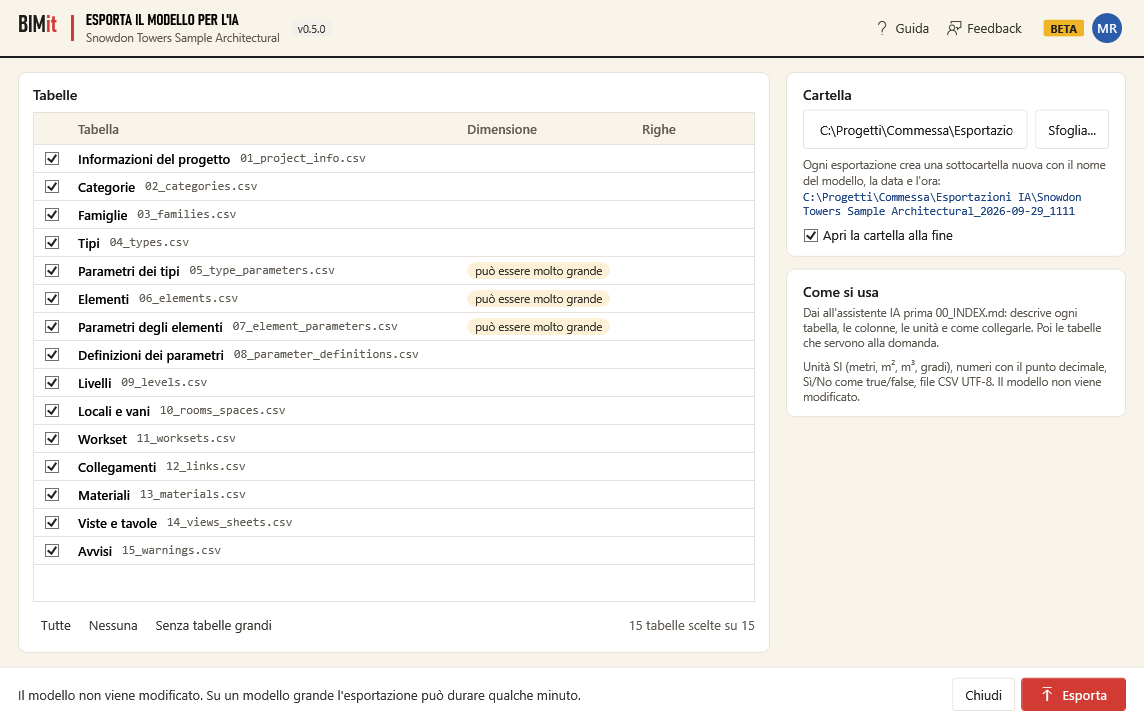
The 15 tables of the model, one per row. The first time all of them are checked. After that BIMit remembers your choice.
| Item | What it does |
|---|---|
| Checkbox on the left of each row | Picks the table to export. With several rows highlighted (Ctrl or Shift), Space checks or unchecks them all. |
| Table | The table name and its file (for example 06_elements.csv). Hover over the table or file name to see what it contains. |
| Size | can be very large, highlighted, for Type parameters, Elements and Element parameters. On a large model they have hundreds of thousands of rows. Element parameters can even reach millions. |
| Rows | Empty before exporting. After: how many rows were written, (partial) if the table is not finished, not exported if you stopped before it started. |
| All · None | Checks or unchecks all the tables. |
| Without large tables | Checks all the tables, Elements included, and unchecks Type parameters and Element parameters. |
| N of 15 tables chosen | The count, below the list, to the right of the All · None · Without large tables buttons. |
Right: the folder#
| Item | What it does |
|---|---|
| Folder | Where to save. You can type or paste the path, even with the quotes added by Copy as path. The first time it is Documents\BIMit\Esportazioni IA. |
| Browse... | Chooses the folder. Go into the folder and click Save: the name Export here doesn't matter. |
| Path below the folder | The full path of the subfolder: model name, date and time, for example …\Esportazioni IA\Building A_2026-09-28_1432. From the model name BIMit removes .rvt and keeps at most 80 characters. Characters other than letters, digits, space, -, . and _ (including ' ( ) &) become _: Building (A) becomes Building _A_. The time is when you click Export: if the window stays open for a long time, the preview may show an earlier time. If the subfolder already exists, _2, _3… is added on export. In Revit 2022, 2023 and 2024, if the path contains characters such as < > |, Invalid folder path. appears. In the other cases the error comes when you click Export (Unable to use the folder). |
| Open the folder when done | Opens the subfolder when the export finishes, even if you stopped it. Checked the first time. You can change it even while the export is running. |
| How to use | The reminder: give the assistant 00_INDEX.md first, then the tables the question needs. |
| Last export | Appears after an export: the summary, the subfolder and the Open the folder button. |
Bottom#
| Item | What it does |
|---|---|
| Message on the left | Choose at least one table. or The model is not modified. On a large model the export can take a few minutes. During the export it shows the phase (Reading the model, Table …, Types, Elements, Views and sheets, Warnings), the count (Elements 12,000 / 85,000) and the progress bar. |
| Close | Closes and remembers the settings. Disabled during the export. |
| Export | Starts the export. Disabled if you have chosen no table. During the export it becomes Stop: after the click Stopping... appears and BIMit stops shortly after. |
When you click Export#
- BIMit creates a new subfolder in the Folder. If it already exists (two exports in the
same minute) it adds
_2,_3… It never overwrites a previous export. - It reads the model once and writes the chosen tables, one after the other. While it works, the table list and the Folder field are locked and you cannot close the window. All, None, Without large tables and Browse... stay active, but apply only to the next export. Browse... also pauses the export until you close the folder dialog.
- At the end it writes
00_INDEX.md. It writes it even if you stop or if some table had errors. It does not write it if the export fails (Export failed). - The message at the bottom and the Last export box say Done: N rows in N tables (duration). and the Rows column fills up. If Open the folder when done is checked, the folder opens.
If you stop, or if a type, an element or a table fails, at the end the BIMit · Export for AI window shows the summary, the folder and the first errors. The last three messages in the table appear in a BIMit alert instead:
| Message | What it means |
|---|---|
| Stopped: export INCOMPLETE. | Tables left halfway are (partial). Those never started are not exported. The index says so at the top (INCOMPLETE) and lists the missing tables under Not exported. Categories and Families are written anyway, marked partial if reading the types was not finished. |
| type … skipped / element … skipped | Revit could not read that type or element, and BIMit left it out. The message shows the first five. The table is not marked (partial): in the index it is complete. |
table_name.csv: … | A table had an error. If it had already started, it is marked (partial). If BIMit could not create the file, the table is missing: the Rows column stays empty and the index does not mention it. |
| Choose the exports folder. | The Folder field is empty: type a path or use Browse.... |
| Unable to use the folder | BIMit cannot create the folder: choose another one. The message comes before starting and nothing is written. |
| Export failed | The export stopped because of an error. The message gives the subfolder: it may contain incomplete tables, without 00_INDEX.md. The Rows column stays empty, Last export is not updated and the folder does not open. |
What you find in the folder#
| Table | File | What it contains |
|---|---|---|
| — | 00_INDEX.md | The index for the AI assistant: model, Revit version, date, number of instances and types, the conventions (numbers, units, how to join the tables). Then, for each exported table, the rows (with (partial) if it is incomplete), the description and the columns; then the tables not exported because of the interruption and the order in which to read them. |
| Project information | 01_project_info.csv | Title, path, Revit version, date, whether the model is workshared, number of instances and types. Then the Project Information fields: text fields only if filled in, numeric and Yes/No fields always. |
| Categories | 02_categories.csv | One row per category, with instances, types and families. bic is the internal name (e.g. OST_Walls), the same in every language. |
| Families | 03_families.csv | One row per family: loadable, in-place or system, with types and instances. |
| Types | 04_types.csv | One row per type, with the family and the number of instances. |
| Type parameters | 05_type_parameters.csv | One row for each type parameter. Text parameters and those pointing to an element are there only if they have a value. Numeric and Yes/No parameters are always there: 0 or false if nobody filled them in. |
| Elements | 06_elements.csv | One row for each element that has a category, not only model elements (see Good to know): category, family, type, mark, level, workset, design option, phases, group, host, position (x, y, z), length, area, volume and bounding box (bbox_*). |
| Element parameters | 07_element_parameters.csv | One row for each instance parameter, with the same rules as Type parameters. |
| Parameter definitions | 08_parameter_definitions.csv | Shared, project and global parameters: GUID, data type, group, instance or type, associated categories. |
| Levels | 09_levels.csv | The levels in order of elevation, with the elevation as Revit shows it and the reference (project base point or survey point). |
| Rooms and spaces | 10_rooms_spaces.csv | Rooms and MEP spaces: number, name, level, area, volume, perimeter. It also says whether they are placed and enclosed. |
| Worksets | 11_worksets.csv | User worksets only: whether they are open, whether they are editable, whether they are the default workset and who owns them (owner). Users who borrowed single elements are not listed. Empty if the model is not workshared. |
| Links | 12_links.csv | Linked Revit models, linked or imported CAD files, point clouds: path, whether they are loaded, whether they are pinned. |
| Materials | 13_materials.csv | Name, class and category of each material. |
| Views and sheets | 14_views_sheets.csv | Views, schedules, legends, view templates and sheets: type, sheet number (for a view, the sheets it is placed on), scale, discipline. |
| Warnings | 15_warnings.csv | Revit warnings, with the severity and the elements involved. |
The file format:
- Comma-separated CSV, in UTF-8. The first row contains the column names, in English and the same in every language. Category and parameter names are in Revit's language.
- Numbers use a decimal point and no thousands separator. Yes/No values are
trueandfalse. An empty cell means not set, not zero. In parameters, however, a number or a Yes/No that was never filled in is written0orfalse. - Units are SI: meters, m², m³, degrees (columns
_m,_m2,_m3). In parameters theunitcolumn gives the unit. Ifunitis empty on a row withstorage=Double(flows, forces, slopes…), the value is in Revit's internal units: in that case usevalue_text, i.e. the value as Revit shows it. Integers (storage=Integer) are written as they are; if Revit shows them as text (for example a list of options),value_textgives that text. Yes/No parameters also havestorage=Integer, but they are writtentrueorfalse. - A parameter that points to another element (material, level, phase…) is written
Name [id].
Good to know#
- The model is not touched. BIMit only reads and opens no transaction. There is nothing to undo with Ctrl+Z and nothing to save. It also works on a model opened read-only.
- Workshared models. BIMit does not borrow elements and does not synchronize. The
worksetcolumn of Elements and the Worksets table are filled only if the model is workshared. Elements on closed worksets are not included. - Linked models. You find only their list in Links, not their content. To analyze a linked model, open it and export it.
- Coordinates.
x,y,zandbbox_*are in the project's internal coordinates, not in shared coordinates. - Elements contains all elements that have a category, not only model elements: also
annotations (dimensions, tags, text…), views, sheets, levels, grids, materials… The
view_specificcolumn identifies view-specific elements andowner_viewsays which view they belong to. The number of instances in Project information and Categories includes them too. - Of text parameters and of those pointing to an element, only those that have a value are
exported. Numeric and Yes/No parameters are always exported: if nobody filled them in they are
0orfalse, and in the files they cannot be told apart from a zero or a No entered on purpose. - On a large model the export takes a few minutes and the files are very large. If the assistant does not need all the parameters, use Without large tables.
- The files stay on your PC. BIMit does not send them to any assistant: you choose what to give and to whom. The files contain project names, paths and data: before sharing them, check that you are allowed to.
- With Windows set to a language that uses the decimal comma (Italian, for example), if you double-click these CSV files Excel puts everything in a single column. Open them with Data → From Text/CSV.
- BIMit remembers the folder, the chosen tables and Open the folder when done for your user.