The MEP panel has two buttons for MEP models: Sleeves and Rooms → spaces.
Sleeves#
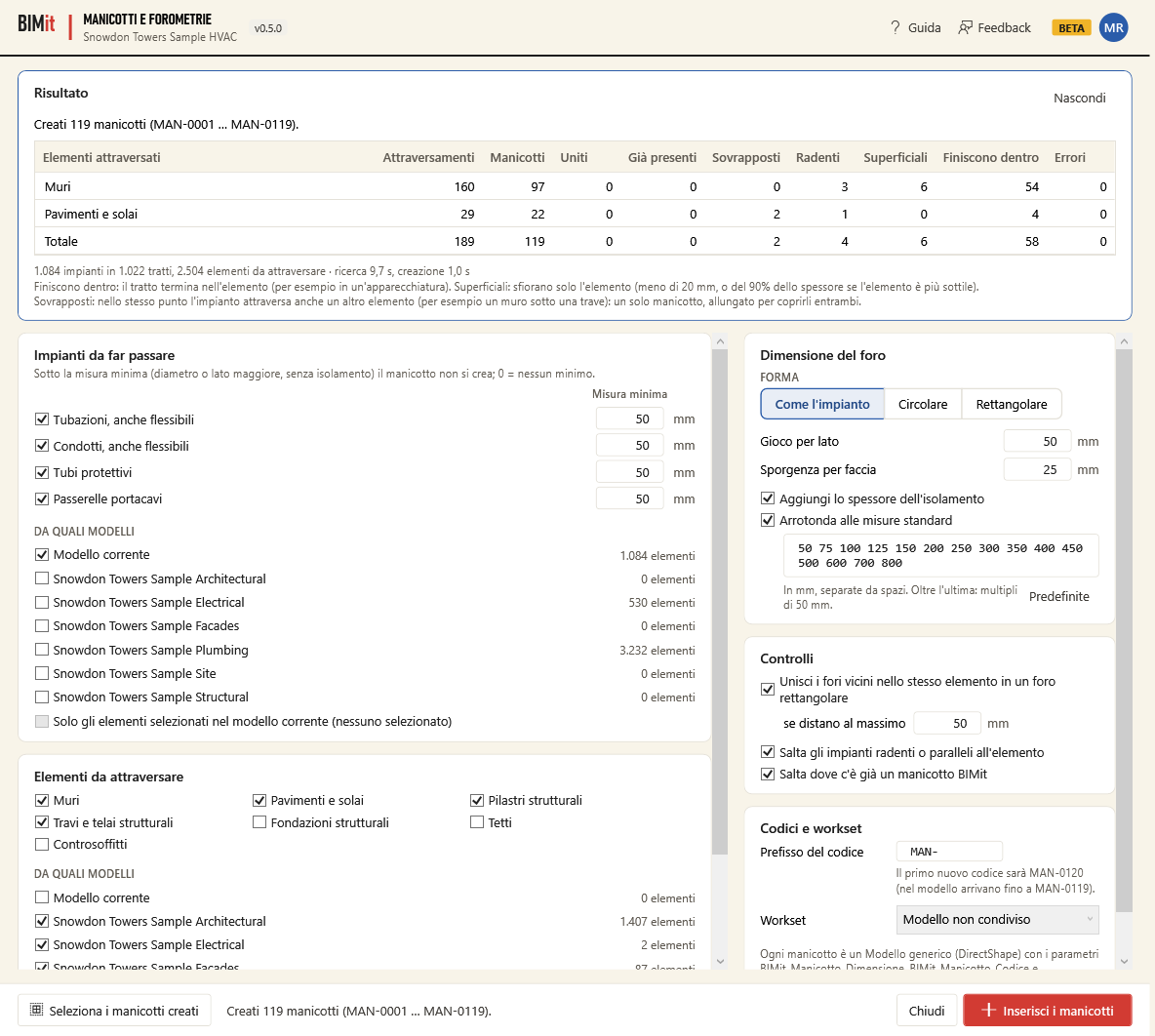
Inserts a sleeve (or an opening) at every point where pipes, ducts, conduits and cable trays cross walls, floors and structural elements. It searches the current model and linked models. Each sleeve is a Generic Model with size, code and elevation already filled in. It opens with the Sleeves button in the MEP panel of the BIMit tab. The window is called Sleeves and openings.
Before you start#
- Open a project: in families the command does not start.
- Linked models appear only if they are loaded.
- Want to work only on some services of the current model? Select them in Revit before clicking Sleeves, then in the window check Only elements selected in the current model. If you don't check it, BIMit uses all the services of the current model.
Services passing through#
| Item | What it does |
|---|---|
| Pipes, including flexible, Ducts, including flexible, Conduits, Cable trays | The service categories in which to look for crossings. The first time all four are checked. |
| Minimum size (mm) | One per category. Below this size no sleeve is created. What counts is the outside diameter or the larger side, without insulation. For pipes and conduits the outside diameter counts, not the DN. 0 or empty = no minimum. The first time it is 50 mm for each category: services smaller than 50 mm get no sleeve. The field is active only if the category is checked. |
| FROM WHICH MODELS | The Current model and each loaded linked model, with the number of their services. Check the models from which to take the services. On opening only the Current model is checked. |
| Only elements selected in the current model (N) | Uses only the services that were selected when you opened the window. Unchecked on opening, even if you have a selection: check it yourself. Applies only to the Current model: from the checked linked models it takes all the services. Grayed out (none selected) if you had not selected any services. |
Elements to cross#
| Item | What it does |
|---|---|
| Walls, Floors, Structural columns, Structural framing, Structural foundations, Roofs, Ceilings | The categories of the elements crossed. The first time the first four are checked. |
| FROM WHICH MODELS | The Current model and the loaded linked models, with the number of elements in these categories. On opening, all the models that have some are checked. |
BIMit reads links in their true position, even if they are rotated or moved. If the same model is linked several times, each copy has its own row (name · copy 1 (id …)).
Opening size#
| Item | What it does |
|---|---|
| SHAPE · Same as the service | Round opening for pipes, conduits and round ducts. Rectangular opening for rectangular or oval ducts and for cable trays. It is the first-time choice. |
| SHAPE · Round | Always round. For a rectangular duct or a cable tray the circle passes through the corners (with insulation, if checked), plus 2 × clearance. For an oval duct the diameter is the larger side + 2 × insulation + 2 × clearance. |
| SHAPE · Rectangular | Always rectangular. For a round pipe the opening is square. |
| Clearance per side (mm) | The free space on each side, between the service (with its insulation, if Add insulation thickness is checked) and the opening. From 0 to 1000 mm. The first time 50 mm. |
| Projection per face (mm) | How far the sleeve sticks out of each face of the element. From 0 to 1000 mm. The first time 25 mm. |
| Add insulation thickness | The opening takes the insulation of pipes and ducts into account. Unchecked, the opening is measured on the service without insulation. Checked the first time. |
| Round up to standard sizes | Each side, or the diameter, goes up to the first size in the list that is equal or larger. Beyond the last size: multiples of 50 mm. Unchecked, the opening has the exact size. Checked the first time. |
| Size list | The standard sizes in mm, separated by spaces. For decimals use the period: the comma separates sizes, like the space. Active only with Round up to standard sizes checked. |
| Defaults | Restores the starting list: 50 75 100 125 150 200 250 300 350 400 450 500 600 700 800. Active only with Round up to standard sizes checked. |
Opening = outside size of the service + 2 × insulation (if checked) + 2 × clearance. If you checked Round up to standard sizes, the size goes up to the first one in the list that is equal or larger. Length = the stretch of the service inside the element + 2 × projection. The length is not rounded.
Checks#
| Item | What it does |
|---|---|
| Merge nearby openings in the same element into one rectangular opening | Merges the openings of the same element that are parallel (within 5°) and close together. The result is a single rectangular opening that contains them all. Merging also works in a chain: if A is close to B and B is close to C, a single opening is created. Checked the first time. |
| if at most … apart (mm) | The maximum distance between the edges of two openings to merge (not between their centers). From 0 to 2000 mm. The first time 50 mm. Active only with Merge… checked. |
| Skip services grazing or parallel to the element | Skips the services that run inside or along the element, i.e. with a crossing longer than 4 times the thickness. They get no sleeve. Checked the first time. |
| Skip where there is already a BIMit sleeve | Skips the crossing if the service is already entirely inside a BIMit sleeve or merged opening, even a renamed one. If two elements are crossed at the same point (centers less than 30 mm apart, same direction within 5°; for example a wall under a beam), it creates a single sleeve, lengthened and if needed enlarged to cover both. Unchecked, every crossing gets its own sleeve. Checked the first time. |
Codes and workset#
| Item | What it does |
|---|---|
| Code prefix | The start of each sleeve's code (the first time MAN-). A 4-digit number follows. Numbering restarts after the highest number with the same prefix already in the model. |
| The first new code will be … | Under the prefix. Shows the first code that will be used and, if there are any, the highest code with the same prefix already in the model (… in the model they go up to MAN-0040). Updates as you type the prefix. |
| Workset | The workset for the new sleeves. Starts from the active workset, marked (active). If the model is not workshared, the field is grayed out (Model not workshared). |
Each sleeve is a Generic Model (DirectShape). It has three text instance parameters, in the Data group:
| Parameter | What it contains |
|---|---|
| BIMit_Manicotto_Dimensione | Ø150 mm or 400×300 mm (width × height). |
| BIMit_Manicotto_Codice | MAN-0001. |
| BIMit_Manicotto_Quota | +1250 mm (Level 1). It is the lowest point of the sleeve: for a horizontal sleeve the bottom of the opening, for a vertical one (in a floor) the lower end, projection included. It is measured from the nearest level below it. If the sleeve is below all levels, it is measured from the lowest level. |
The element name gives shape, size and length in mm: Manicotto Ø150 L300, Manicotto 400×300 L300 or, for a merged opening, Foro unito 400×300 L300 (Manicotto = sleeve, Foro unito = merged opening).
Window footer#
| Item | What it does |
|---|---|
| Message on the left | Before starting it says how many models you have chosen (Services from 1 model, elements from 3 models.) or what is missing. During the work it shows the current phase (run 26 of 800, Creating 11 of 95) with the progress bar. At the end it reports the result. |
| Select created sleeves | Appears after an insertion that created sleeves. Closes the window, selects the newly created sleeves in Revit and shows them in the view. |
| Close | Closes the window. Locked during the work. |
| Insert sleeves | Looks for the crossings and creates the sleeves. During the work it becomes Stop. |
When you click Insert sleeves#
- Value check. If a value is not valid, BIMit tells you and does not start. This happens with an invalid number, a value out of range, an invalid size list (with Round up checked), or no category or no model chosen. In the mm fields you can use a comma or a period (in the size list only the period). An empty field counts as 0.
- Search. BIMit reads the BIMit sleeves already present, the elements to cross and the services. In this phase it modifies nothing. Straight segments in line form a single run: both when a fitting or an in-line accessory joins them (coupling, valve, straight tee) and when they just touch. So a pipe split inside a wall gives a single crossing, not two. BIMit uses the whole geometry of the element (layers, several pieces). Each crossing of the same element has its own opening, for example on the two legs of an L-shaped wall.
- Creation. BIMit merges nearby openings and assigns the codes from bottom to top. Then it creates the missing parameters and the sleeves. It does not ask for confirmation. It closes Revit warnings by itself.
- Result. The Result box appears at the top of the window. Hide closes it.
Stop stops after the current step. During the work the rest of the window and Close are locked. The window's X, during the work, also stops it, but the window stays open. If you stop, no sleeve stays in the model: the sleeves already created and the new parameters are undone.
The result#
The message at the top:
| Message | Meaning |
|---|---|
| Created N sleeves (MAN-0001 … MAN-0040) | The number of sleeves and the first and last code. If there are merged openings, it says how many and how many nearby sleeves they replace. In workshared models it also gives the workset. |
| No new sleeves to create. | No crossings to cover: there are none, they are already covered or they were skipped. |
| No services found in the chosen categories and models. | Check the categories and FROM WHICH MODELS. |
| Stopped: no sleeves created, the model was not modified. | You clicked Stop. |
| The model was not modified. | The creation failed and was undone. The reason is in the notes. |
The table has one row for each category of crossed elements in which BIMit found crossings. With several categories, the last row is the Total.
| Column | Meaning |
|---|---|
| Elements crossed | The category (Walls, Floors…). |
| Crossings | How many crossings BIMit found. |
| Sleeves | How many sleeves it created. A merged opening counts as one. |
| Merged | How many crossings ended up in a merged opening. |
| Already present | Crossings already inside a BIMit sleeve: skipped. Only with Skip where there is already a BIMit sleeve checked; otherwise it stays at 0. |
| Overlapping | At the same point the service also crosses another element. A single sleeve, lengthened and if needed enlarged, covers both. Only with Skip where there is already a BIMit sleeve checked; otherwise it stays at 0. |
| Grazing | Services that run inside or along the element: skipped. |
| Shallow | Services that barely touch the element: skipped. The stretch inside is under 20 mm, or under 90% of the thickness if the element is thinner. |
| End inside | The run ends inside the element, for example in a piece of equipment: skipped. |
| Errors | Crossings BIMit could not compute or sleeves not created. The reason is in the notes. |
Below the table you find the notes:
- how many services, runs and elements to cross were read, and the seconds spent searching and creating;
- how many services were below the minimum size and how many had no axis (skipped);
- how many BIMit sleeves were already in the model;
- the services that come out of an existing BIMit sleeve, because the service was moved or the sleeve is too small. For these BIMit creates a new sleeve. About the old one it tells you whether it still contains other crossings (keep it) or no longer contains any of the chosen services. In that case check it and delete it only if no service needs it any more. This note appears only with Skip where there is already a BIMit sleeve checked;
- an explanation of End inside and Shallow (always) and of Overlapping (if there are any);
- up to 8 other notes, for example errors or parameters not written. The others are in the log (Account → Log folder). BIMit records at most about 30 notes: beyond that, errors do not even reach the log.
Good to know#
- One Ctrl+Z in Revit undoes the whole insertion, i.e. parameters and sleeves. In the command history the operation is called BIMit: sleeves.
- What stays intact. Services, walls, floors, structural elements and existing sleeves are not modified or deleted. Linked models are only read: sleeves are always created in the current model. In the project only the sleeve parameters change (see Parameters).
- Old sleeves are never deleted automatically, not even when a service has moved. A merged opening can also serve other services. BIMit points them out in the notes.
- BIMit recognizes its sleeves by an internal mark, not by name: you can rename them. It recognizes only those in the current model, not those in linked models.
- Codes. Numbering restarts after the highest number with the same prefix (case-insensitive) written in BIMit_Manicotto_Codice in the model's Generic Models. So two insertions never produce the same code. If a sleeve is not created, its code is not used and the numbering has a gap.
- Parameters. If they are missing, BIMit creates the three parameters from a shared parameter
file of its own, with fixed GUIDs that are the same in every project. The file is
BIMit_SharedParameters.txtin%LOCALAPPDATA%\BIMit. Revit's shared parameter file setting does not change. If the project already has a parameter with the same name that is a type parameter, or is not a text parameter, BIMit does not write it and says so in the notes. If it exists but is not assigned to Generic Models, BIMit adds that category and puts it in the Data group. - Worksharing. The new sleeves go into the workset chosen in Workset, usually the active one.
- Units. All the sizes in the window are in mm, whatever the project units.
- BIMit reads only the straight segments of pipes, ducts, conduits and cable trays. Fittings, accessories and equipment do not get a sleeve of their own.
- If BIMit cannot read the size of a service, the opening becomes Ø100 mm + 2 × clearance (a square of the same size with SHAPE · Rectangular), rounded up to the standard sizes if Round up is checked. The minimum size does not apply to these services.
- If BIMit cannot read the geometry of an element to cross, it skips it without warning: it does not even appear among the Errors.
- Design options. BIMit reads the main model and the primary option. Secondary options are ignored.
- Selection. Only elements selected… uses the selection present when you opened the window, and only if you check it. To change it, close the window, select and reopen.
- Your choices are kept. BIMit saves them in
%LOCALAPPDATA%\BIMit\Mep_Manicotti.jsonevery time you click Insert sleeves and the values are valid, and offers them again next time, in any project. It does not save the checked models, Only elements selected and the workset. - No report file is written. The result stays in the window and the notes go to the log.
Rooms → spaces#
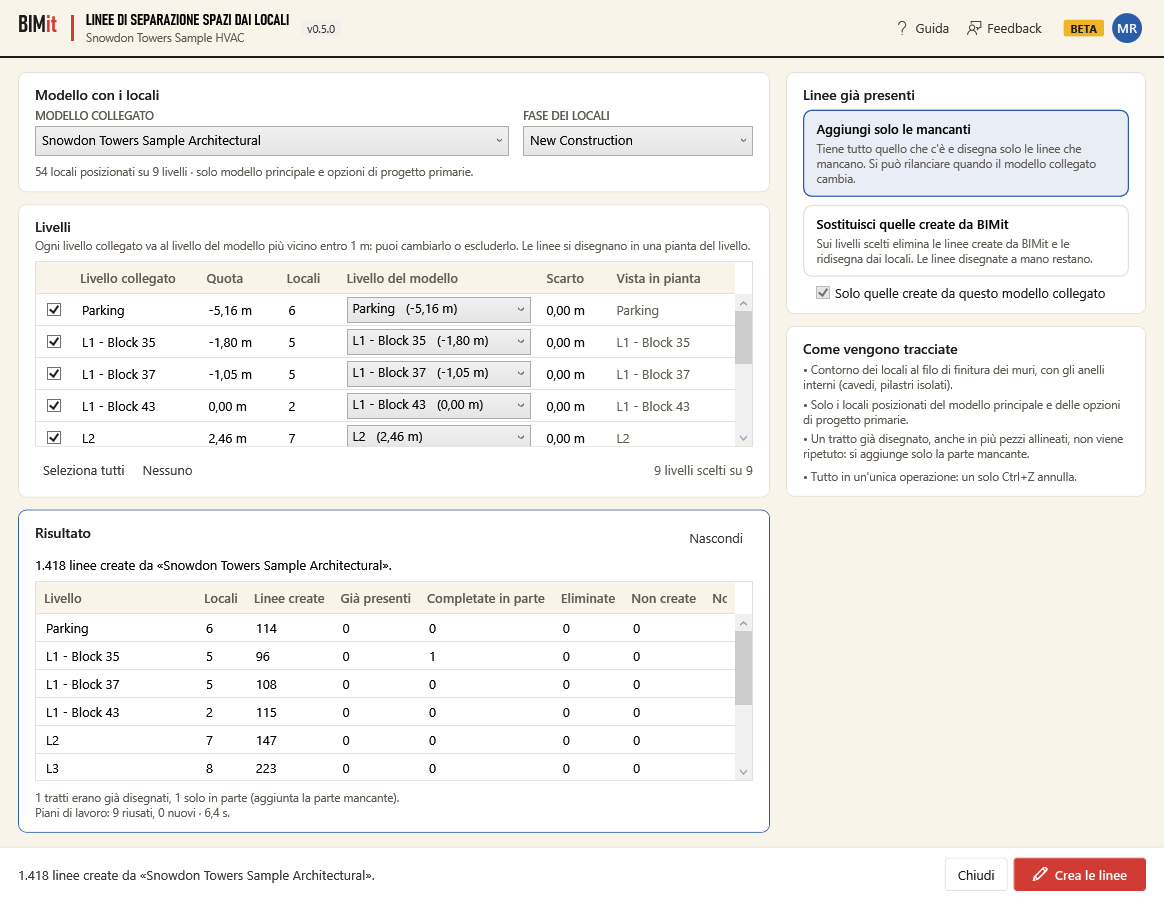
Draws space separation lines in the current model by tracing the boundaries of the rooms of a linked model, level by level. They delimit the MEP spaces like the architectural rooms, without redrawing them by hand. Lines already present are not repeated, even if they were drawn by hand or in several pieces. It opens with the Rooms → spaces button in the MEP panel, on the BIMit tab.
Before you start
- Open the project (not a family) in which you want the lines.
- The model with the rooms must be linked and loaded. A link that is unloaded or on a closed workset does not appear. If there is none, BIMit tells you and does not open the window.
- The current model must have levels (if it has none, BIMit tells you and does not open the window) and, for each level you use, a plan: the lines are drawn there.
Model with the rooms
| Item | What it does |
|---|---|
| LINKED MODEL | The model from which to read the rooms. The list contains all linked and loaded Revit models, in alphabetical order. If the same file is linked several times, each copy has its own entry (copy 1 (id …), copy 2 …). |
| ROOM PHASE | Takes only the rooms of this phase. On opening, and every time you change the linked model, the last phase of the linked model is chosen. (all phases) takes them all. |
| Message below | How many placed rooms there are and on how many levels, how many are without level, skipped and the reminder main model and primary design options only. If there are none: No placed rooms in this phase, with the number of rooms without level if there are any. If the rooms cannot be read: Unable to read the rooms: … and the level table stays empty. |
Levels
Each level of the linked model that has rooms takes one row, in order of elevation. Click a header to sort (except the one of the checkbox column). If you change the linked model or the phase, the table is recalculated: the checks and the levels chosen by hand go back to BIMit's proposal.
| Item | What it does |
|---|---|
| Checkbox on the left | Include or exclude the level. When the table loads, the levels that have a level of the model within 1 m are checked. |
| Linked level | The name of the level in the linked model. |
| Elevation | Its elevation in the current model, in meters. It takes into account how the link is positioned. It is measured from the model's internal origin: it may differ from what Revit shows on the level if the levels are measured from the survey point or from a project base point moved vertically. |
| Rooms | How many rooms it has. |
| Model level | The level of the current model on which the lines go, with its elevation (measured like the Elevation). BIMit proposes the nearest one and you can choose another. If no level is within 1 m, it still proposes the nearest one but leaves the row unchecked. If two linked levels go on the same level, their rooms add up. |
| Gap | The vertical distance between the two levels. In red if it exceeds 1 m. |
| Plan view | The plan in which BIMit draws the lines: a floor plan of the level or, if there is none, a ceiling plan or a structural plan (never an area plan). If there is no plan at all, no plan: level skipped appears in red. |
| Select all | Checks the levels with a gap of 1 m at most and unchecks the others. |
| None | Unchecks everything. |
| N of M levels chosen | The count, bottom right. |
Existing lines (on the right)
| Item | What it does |
|---|---|
| Add missing only | The choice on opening. Deletes nothing and draws only the missing lines. You can run it again when the linked model changes. |
| Replace those created by BIMit | On the chosen levels, deletes the lines created by BIMit and redraws them from the rooms. Lines drawn by hand stay. |
| Only those created from this linked model | Active only with Replace, and checked at the start. Deletes only the BIMit lines made from this link. Uncheck it to also delete those made from other links. |
The How they are traced box is just a reminder: you find the details below.
Window footer
| Item | What it does |
|---|---|
| Message on the left | Before starting it says what will be done (N rooms to trace on M model levels) or Choose at least one level. During the work it shows the current level and the room number, counted over all levels and updated every 5 rooms (Ground floor · room 121 of 850), then Committing.... At the end it shows the first line of the result. |
| Progress bar | Appears during the work. |
| Close | Closes. Disabled during the work, like the rest of the window (linked model, phase, levels, mode, result). Stop, the window's X and the header buttons at the top, such as Guide and Feedback, stay active. |
| Create lines | Starts. Disabled if you have chosen no level. During the work it becomes Stop: it undoes everything and the model is not modified (the message says Stopping... until BIMit stops). The window's X also stops, but the window stays open and shows the result. BIMit checks for a stop every 5 rooms: if you stop during the last rooms or during Committing..., the operation completes anyway and the result shows it (to undo it, use Ctrl+Z). |
When you click Create lines
- If you checked a level with a Gap over 1 m, BIMit lists those levels with their gap (at most 10, then “…”) and asks whether to continue. With Yes their rooms go on the chosen level anyway.
- BIMit looks for the plan of each chosen model level. A level without a plan is skipped.
- With Replace it first deletes the BIMit lines of that level: only those of this link if Only those created from this linked model is checked, and never those locked by other users in the workshared model (see Good to know). On a level skipped for lack of a plan it deletes nothing.
- It reads the boundary of each room at the wall finish face, with the inner loops (shafts, free-standing columns). It brings it into the current model, with the translation and rotation of the link, and places it at the elevation of the model level.
- It compares each segment with the space separation lines already on the level (within about 30 cm of its elevation and not closer to another level of the model), even if drawn by hand or in several aligned pieces, and with those just drawn for neighboring rooms. It draws only what is missing. Lines at another height are ignored and Replace does not delete them.
- It does everything in a single operation, BIMit: space separation lines. Revit warnings, for example about overlapping lines, close by themselves and you don't have to click anything. When committing, Revit joins the ends of nearby lines: it may lengthen, shorten or tilt them by a few centimeters. That is fine: on each of its lines BIMit remembers the segment it was drawn for and does not repeat it on the next run. If a newly drawn line becomes too short for Revit, BIMit removes it, as Revit proposes. Any other Revit error undoes everything without opening Revit's dialog, with the reason in the notes.
Result
At the end, below the levels, the Result box appears.
| Item | What it says |
|---|---|
| First line | N lines created from “model” (1 line created if there is only one). With Replace it adds , M BIMit lines replaced. If nothing was missing: 0 lines created from “model”. If you stopped: Stopped: the model was not modified. If an error blocked the operation or Revit rolled it back: The model was not modified., with the reason in the notes. In these two cases Lines created, Partly completed and Deleted are 0. |
| Level, Rooms | The model level and how many rooms of the linked model go on that level (added up, if several linked levels go there). |
| Lines created | The new lines. |
| Already present | The boundary segments already drawn in full, before the run or for a neighboring room in the same run (for example along a room separation line), which BIMit did not repeat. This is why they can be more than 0 even on the first run. |
| Partly completed | The segments that were drawn only in part, before the run or for a neighboring room: BIMit added the missing part. |
| Deleted | The BIMit lines deleted (only with Replace). |
| Not created | The segments that could not be drawn, for example because Revit refused them. If there is an error message, you find it in the notes (level: reason). |
| Note | no plan view if the level was skipped. |
| Notes below the table | They list the segments already drawn (and how many only in part), the BIMit lines not replaced because they are in use by other users or changed in the central model, the segments too short for Revit, the rooms without boundary and the Levels without plan view, skipped. Then the Work planes reused or created, with the time taken, and the errors (at most 8). |
| Hide | Hides the box. |
Good to know
- One Ctrl+Z undoes everything, deletions included. The model stays as it was if you stop, if an error blocks the operation or if Revit refuses it. A segment that cannot be drawn, instead, does not stop the rest: it is counted in Not created.
- Lines drawn by hand are never deleted and, if they are on the level, they count as already present. BIMit recognizes its own lines by a mark saved on each one.
- Add missing only never deletes anything. If a room of the linked model disappears or moves, its old lines stay: to clean them up use Replace those created by BIMit.
- BIMit draws only the lines, not the spaces: you place the spaces yourself.
- Rooms are read only from linked models, not from the current model.
- Only placed rooms with an area count, from the main model and the primary design options. Rooms without a level are skipped; you find them counted in the message under Model with the rooms.
- A straight segment counts as already present if there is an aligned line within 3 mm (and with an angle within 0.5°). If the line covers only part of the segment, BIMit adds the missing part. An arc counts as already present only if there is an arc with the same ends and the same midpoint.
- Segments shorter than the minimum Revit accepts cannot be drawn: they are counted in the note segments too short for Revit. The lines that Revit makes too short when joining them to their neighbors end up there too (note N lines too short for Revit were removed).
- To recognize the source model, Only those created from this linked model looks at the link, not at the file name. If you reload the same link from another file, it stays the same link. If you delete it and link it again, it is a new link: the previous lines are not replaced, unless you uncheck the option.
- Workshared model (worksets): with Replace, BIMit lines borrowed by another user or changed in the central model are not deleted, so the rest of the work goes on. They stay, count as already present and the result tells you about them. Reload latest or ask for them to be relinquished, then run again.
- If the level already has space separation lines, or the plan has a work plane, at the level's elevation, BIMit reuses that work plane and does not create a new one at every run.
- The window does not create working files (it only writes a few lines to BIMit's technical log) and does not remember your choices. Every time it starts again from the first link in the list, the last phase, Add missing only and Only those created from this linked model checked.