Sheets and views to PDF, DWG, DGN, DWF/DWFx, NWC, IFC, images and a data table in one go, with Revit's own exporters: no PDF printer, no AutoCAD. It opens with the Export button on the BIMit tab. The window has three tabs, in the order you use them: 1 · Selection (what to export and with what name), 2 · Formats (which formats and with which options), 3 · Create (where, the file queue, the report, scheduled exports).
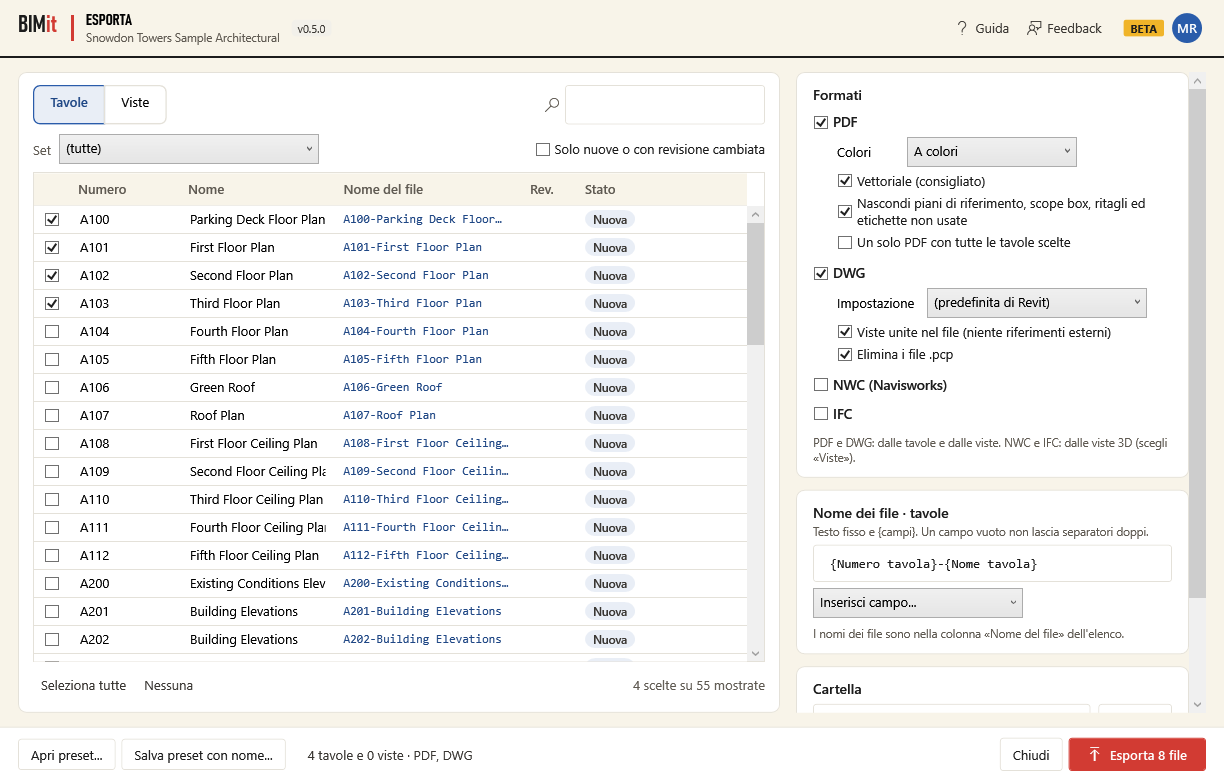
Top: profiles and presets#
The export settings of a model (selection, formats, names, folder, queue, report) live in the
model preset, a .json file that BIMit links to the model and saves by itself, together with
the export history, the saved selections and the scheduled exports. A profile is
the same set of settings with a name, to reuse on other models and to share with the team (without
history, selections and scheduled exports, which belong to the model). Profiles are in
Documents\BIMit\Profili esportazione.
| Item | What it does |
|---|---|
| Profile | The saved profiles. Next to it, which profile is in use in the model and which is the default. |
| Load | Uses the settings of the chosen profile. The model's history, saved selections, scheduled exports and per-sheet settings stay. |
| Save | Saves the current settings to the chosen profile (asks for confirmation). If there are no profiles, it asks for the name of a new one. |
| New ▾ | Creates a profile and uses it: From BIMit defaults, From current settings or From a .json file (a profile or a colleague's preset). |
| Manage ▾ | Rename…, Delete, Use as default for new models (a model opened in Export for the first time starts from that profile), Import from a (team) folder…, Publish to the team folder as default…, Open the profiles folder. |
| Open preset… · Save preset as… | The model preset as a file: save it in the project folder and colleagues open it with Open preset…, history included. On the left, the name of the linked file. |
The team profile. Whoever manages the standards chooses a shared folder (for example on the network) and with Manage → Publish to the team folder as default… copies the profile there and makes it the team default. Each colleague, once, does Manage → Import from a (team) folder…: BIMit copies the profiles from the folder, takes the team default and remembers the folder. From then on every new model starts from the team default (if the folder is reachable), otherwise from the user's default, otherwise from BIMit's settings.
1 · Selection#
| Item | What it does |
|---|---|
| Sheets · Views | The list of sheets or views (3D, plans, sections, elevations, drafting views, details, legends, renderings…). You can pick from both lists in the same export. |
| 🔍 search box | Searches all columns: number, name, type, scale, revision, paper size, sheet set, file name and extra columns. With several words, all of them must be present (A1 plan). |
| Sheet set | Only the sheets and views of one of the project's sheet sets. |
| View type | (Views) Only plans, only sections, only 3D… |
| Saved selection · Save… · Delete | A named group of sheets and views, saved in the model. Choosing it checks its sheets and views (and unchecks the others); Save… saves the ones checked now under a name (the same name replaces it). Selections are also used by scheduled exports. |
| Only open in Revit | Only those open in Revit's tabs. |
| Only new or with changed revision | Hides those already exported with the same revision: after a new revision you immediately find what to reissue. |
| Only checked | Shows only the checked rows, to review them. |
| Checkbox on the left of each row | Picks the sheet. With several rows highlighted (Ctrl or Shift), Space checks them all. |
| Size | (Sheets) The paper size read from the title block (Sheet Width and Sheet Height): A1 landscape, A3 portrait… or the dimensions in mm if it is not a standard size. In bold if you changed it for that sheet. |
| File name | The name the file will have, updated as you type the pattern. In red if another row has the same name (it will be saved with (2)), in italics if you typed it by hand. |
| Status | New (never exported), Revision changed, Exported on …. |
| Right-click a row | For the highlighted rows only: Paper size and Orientation (different from those in Formats), File name… (for that row only), Back to profile values, Open in Revit. |
| Select all · None · Clear selection | Checks or unchecks those shown; Clear selection unchecks all of them, sheets and views. |
| Open in Revit | Opens the highlighted sheet or view in Revit. |
File names — fixed text and {fields}, one pattern for sheets and one for views.
Insert field… adds a field at the cursor: from the sheet (Sheet number, Sheet name,
Revision, Revision date, Revision description, Sheet issue date, Drawn by, Checked by,
Paper size…), from the view (View name, View type, Scale), from the project (Project
number, Project name, Client name, Organization name, Project issue date…), Model name,
Today's date, Time, User, or Parameter… for any parameter of the sheet or view (or of the
project information), for example {Parameter: Drawing code}. Date and time accept a format after
the colon: {Today's date:yyyy-MM-dd}, {Time:HH.mm}. The -, _, . and space
buttons add a separator. Prefix and Suffix are text before and after every name (also of
the single PDF and of the data). Preview shows the real names of the first checked sheets. An
empty field leaves no double separators, and characters not allowed by Windows are removed.
Extra columns — sheet or view parameters to see in the list (choose or type the name, then Add; Remove removes the highlighted one). They can be searched and also end up in the sheet data.
Advanced — during the export BIMit can turn off, in the views where they are active, Temporary Hide/Isolate, Worksharing Display, Reveal Hidden Elements and Reveal Constraints, which would otherwise end up in the files. Revit puts them back as they were right after each file and the model does not change. Unchecked, they stay as they are.
2 · Formats#
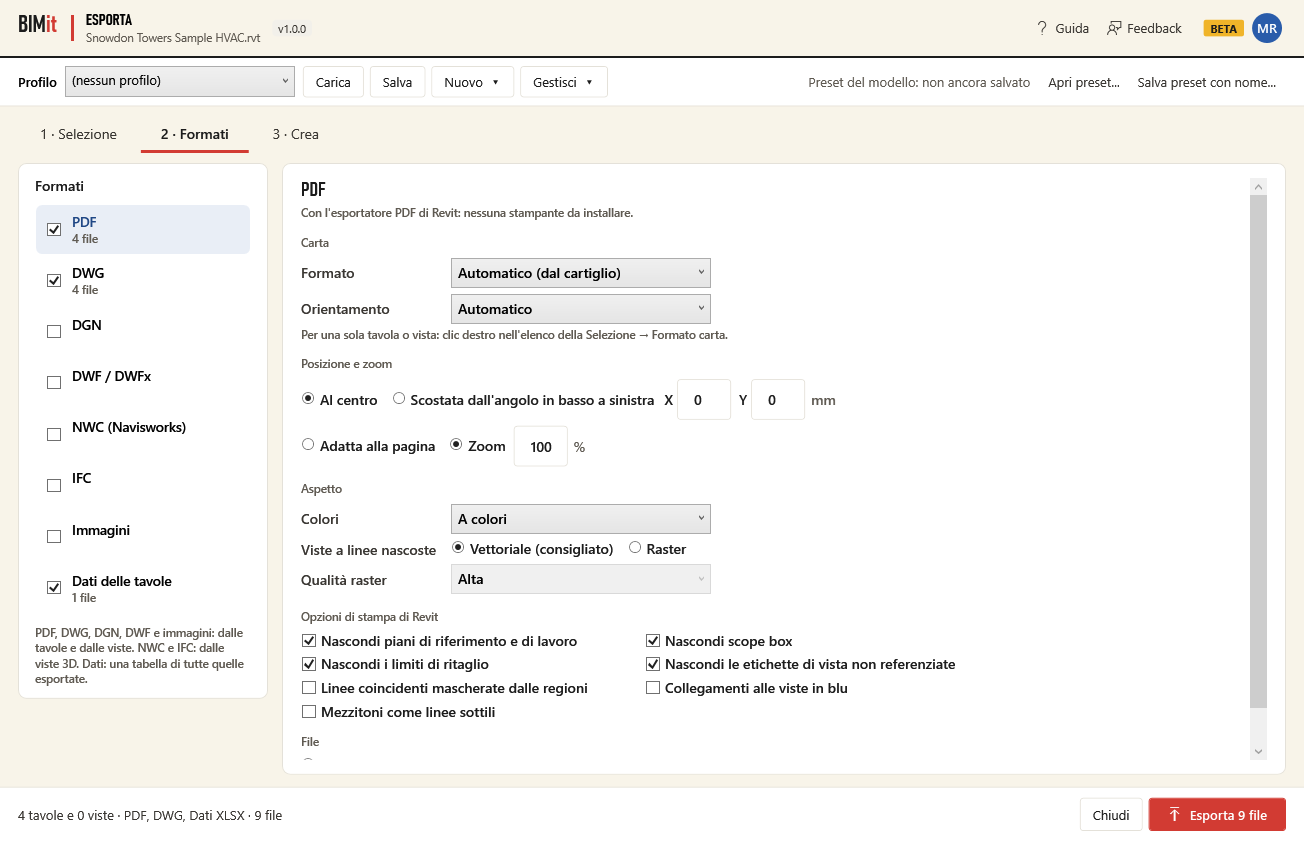
On the left, the formats: the checkbox turns a format on, clicking its name shows its options; under the name, how many files it will create. PDF, DWG, DGN, DWF and images are exported from sheets and views; NWC and IFC from 3D views; the data is a single table of everything exported.
| Format | Options |
|---|---|
| Paper: Automatic (from title block) (each sheet with the size of its title block; views on A3 fitted to the page) or a fixed size (A0…A4, B1…B4, ANSI, ARCH), with the Orientation. Position: centered or offset from the lower-left corner by X and Y mm. Zoom: fit to page or a percentage (100% = true scale). Colors (color, grayscale, black and white). Hidden line views: vector (recommended: sharp lines, light files) or raster, with the Raster quality. Revit's print options: hide reference/work planes, scope boxes, crop boundaries, unreferenced view tags; region edges mask coincident lines; view links in blue; halftone to thin lines. File: one PDF per sheet or view, or a single PDF with all those chosen, with its own name and Each page with the size of its sheet; the page order is the order of the queue (3 · Create, Up and Down). | |
| DWG | Setup: the project's DWG export setups (layers, colors, units, linked models inserted or as references). Views on sheets: merged into the file (one DWG per sheet) or as external references (one DWG per view, referenced by the sheet). Delete the .pcp files that Revit writes next to each DWG. |
| DGN | Setup: the project's DGN export setups. Views on sheets: merged into the file or as references. |
| DWF / DWFx | DWFx (also opens with the Windows XPS viewer) or DWF; Element properties, Rooms and areas, Show crop boundaries; image compression and quality; paper (automatic from the title block or fixed) and orientation. |
| NWC | One file per 3D view: Shared coordinates, Divide by levels, Element IDs, Include linked models, Parts, Room geometry, Room as attribute, Links (URLs), Convert element properties, Convert linked CAD files, Convert lights, Find missing materials, Parameters (all, elements only, none). Requires the Navisworks exporter for Revit (if it is missing, BIMit says so). |
| IFC | One file per 3D view: Version (IFC 2x3 CV 2.0, IFC4 Reference View, IFC4 Design Transfer View, IFC4, IFC 2x3, FM, COBie…), Space boundaries, Only elements visible in the view, Shared coordinates, IFC common property sets, Revit property sets, Base quantities, Split walls and columns by level. |
| Images | One image per sheet or view: Type (PNG, JPG, TIFF, BMP, TGA), Resolution (72–600 DPI), Size: fit to N pixels horizontally or vertically, or zoom as a % of actual size. |
| Sheet data | An Excel, CSV or XML table with one row per exported sheet or view: type, number, name, view type, revision, revision date, paper size, width and height, scale, sheet set, file name and the extra columns from Selection. File name with {fields}. |
3 · Create#
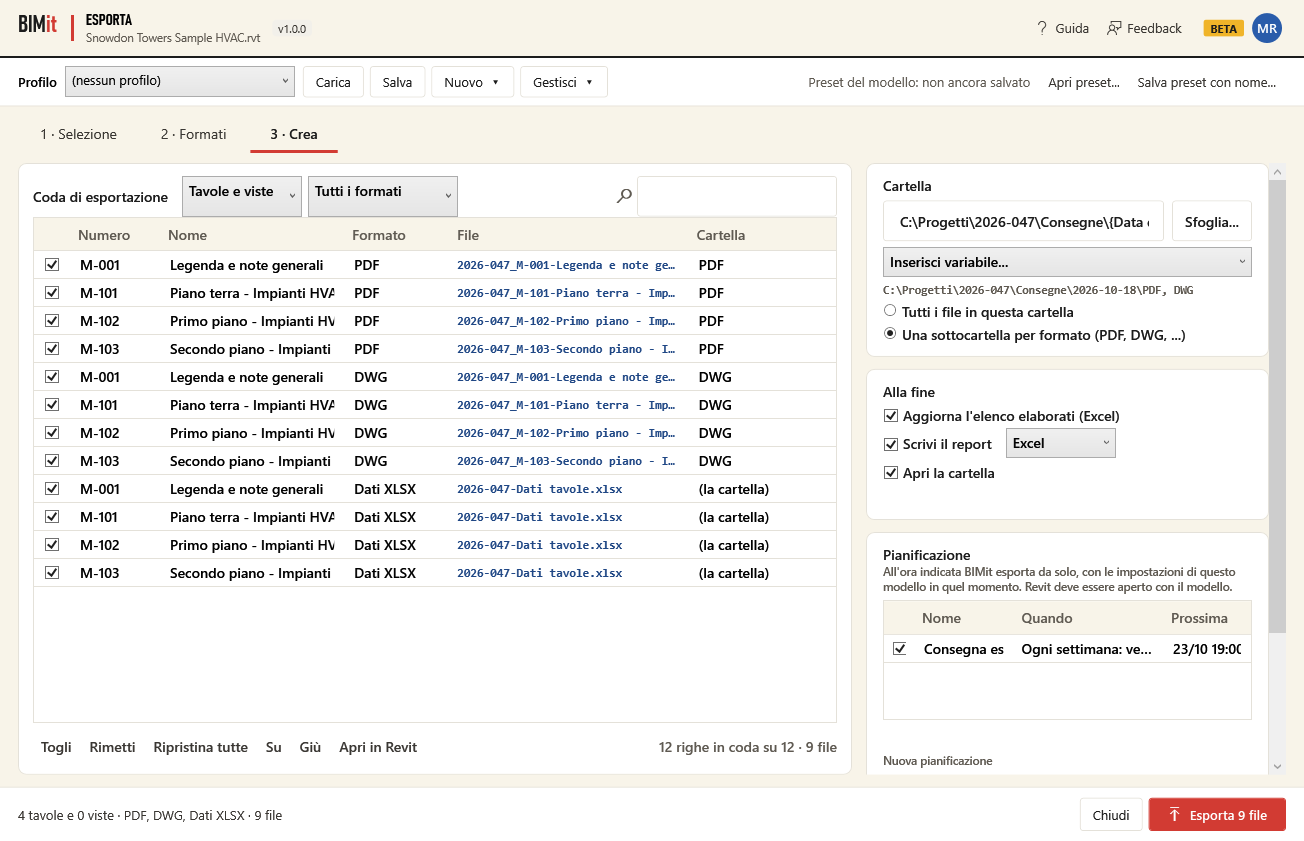
Folder
| Option | What it does |
|---|---|
| Folder · Browse… | Where to save. The path can contain variables, which Insert variable… adds at the end: {User}, {Today's date} and {Today's date:yyyy-MM-dd} (with the format you want), {Time}, {Model name}, {Project number}, {Project name}, {Project issue date}, {Format} (PDF, DWG…), any project information parameter and Windows variables such as %USERPROFILE%. For example \\server\Projects\{Project number}\Issues\{Today's date:yyyy-MM-dd}. Below, the real path. |
| All files in this folder · One subfolder per format | A single folder, or PDF, DWG, DGN, DWF, NWC, IFC and images (Immagini) in subfolders (the data, the drawing list and the report stay in the folder). With {Format} in the path you decide where the subfolder goes. |
Export queue — one row for each checked sheet or view and each active format, with the file name and the folder. Sheets and views · Sheets only · Views only, the format and the search filter it.
| Item | What it does |
|---|---|
| Row checkbox | Removes or restores the row: when removed, that file is not created ((removed)). Removed rows stay removed, even the next time you open the window, until you restore them. Space toggles all highlighted rows. |
| Remove · Restore · Restore all | Removes or restores the highlighted rows; Restore all restores everything. |
| Up · Down | With A single PDF: moves the highlighted pages within the single PDF. |
| Open in Revit | Opens the sheet or view of the highlighted row. |
When done
| Option | What it does |
|---|---|
| Update the drawing list (Excel) | Writes Elenco elaborati.xlsx (the drawing list) in the folder: number, title, revision, revision date, the files of each exported format and the export date of everything exported with this model. |
| Write the report · Excel/CSV | Writes the export report (Report esportazione, with the date and time in its name) in the folder: for each file its name, format, folder, sheets and views, time, duration and outcome (with the message if it failed), then the date, the successful and failed files and the total time. |
| Open the folder | Opens the folder when finished. |
| Last export · Open the last report | When the model was last exported (even if the export was scheduled or done by Claude), how many files and how long it took. |
Scheduling — BIMit exports by itself at the set time, with the model's settings at that moment (formats, names, folder, removed rows). Revit must be open with the model: if it was closed at that time, the export runs once, at the first opportunity after the model is reopened.
| Item | What it does |
|---|---|
| List | The model's scheduled exports: the checkbox turns one on or off, When and the Next run. Below, the last one that ran and its outcome. |
| Date · time · repeat | The first run and then Once, Every week (on the days you check; none = the weekday of the date) or Every month (the same day; in shorter months, the last day). |
| What | The sheets and views checked now (fixed at that moment) or a saved selection (whatever it contains at run time). |
| Only new or with changed revision | Exports only those never exported or with a changed revision: nothing to do, no files. |
| Add · Delete | Adds the scheduled export or deletes the highlighted one. |
Bottom#
| Item | What it does |
|---|---|
| Message | What is missing (Choose the sheets…, Choose at least one format…) or what will be exported, and during the export the current file (PDF 3/20 · A101-…) with the progress bar. |
| Export N files | Starts. During the export it becomes Stop: it stops after the current file. |
| Close | Closes and saves the settings in the model preset. |
At the end BIMit opens the folder; if some file failed (or the drawing list or the report were open in Excel) it tells you which one and why. With Claude you can do all this in plain words (the tavole_… tools in the Claude (MCP) chapter): “export the sheets with a changed revision to PDF and DWG”, “schedule the construction issue every Friday at 7 pm”.