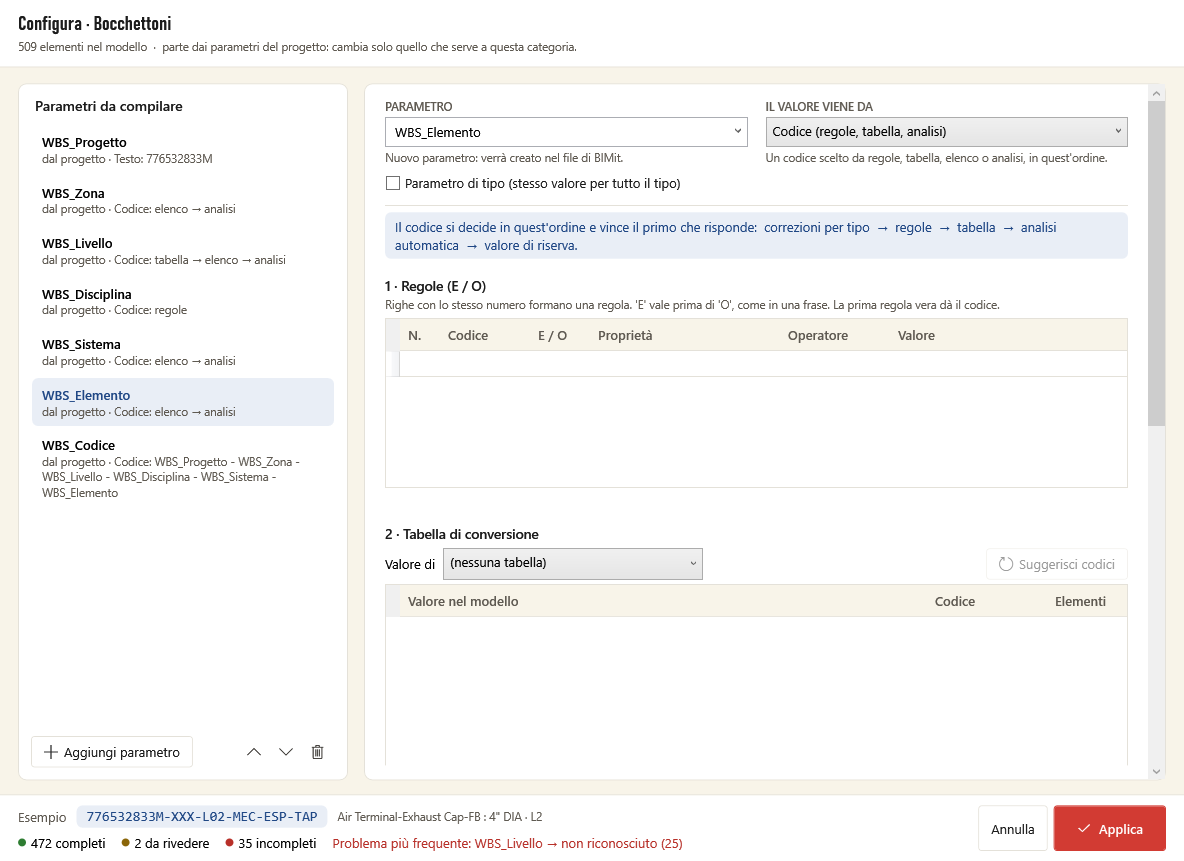
The same window is used for the whole project (Configure for the whole project…) and for a category (Configure…). In a category you start from the project parameters and change only what that category needs.
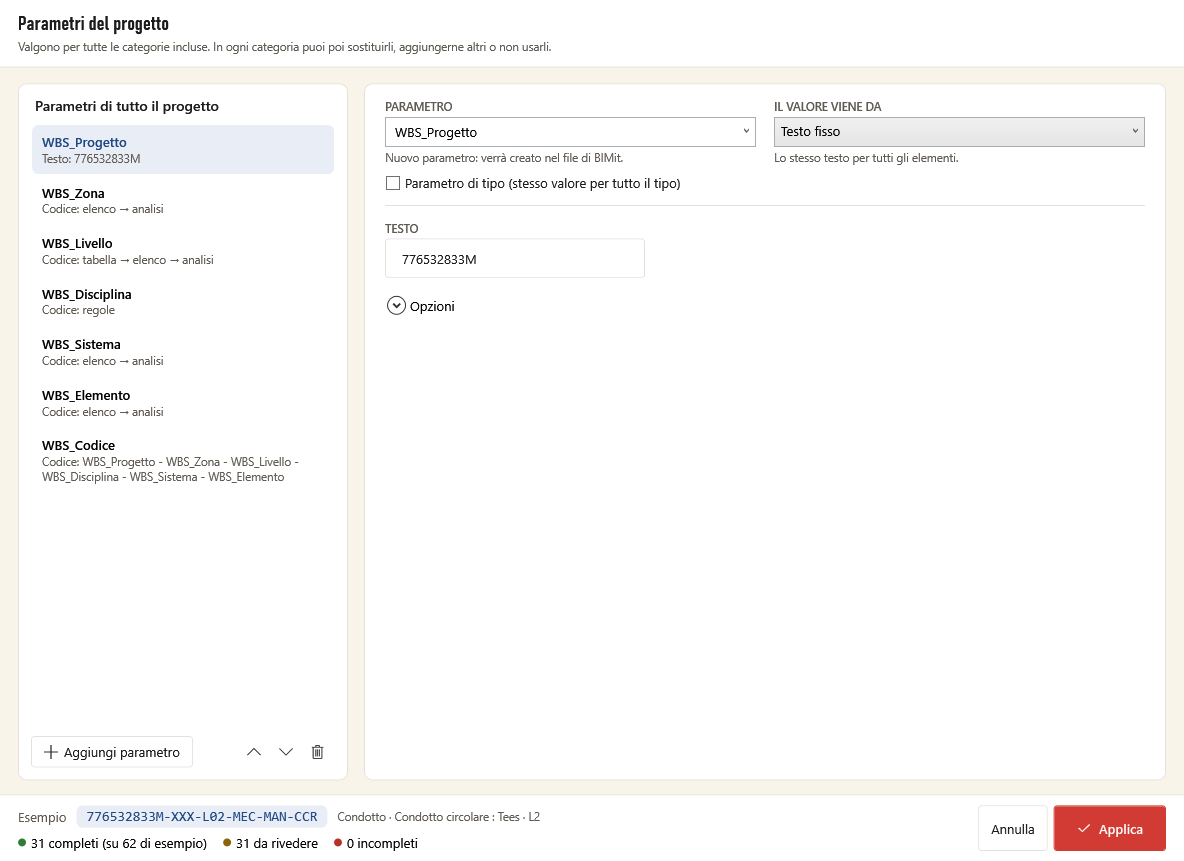
Left column: the parameters to fill#
| Item | What it does |
|---|---|
| List | One parameter per row, with a summary of where the value comes from. In a category: from project, changed here or only here. |
| Add parameter | Adds a new parameter. |
| ↑ ↓ | Change the order. |
| 🗑 | In the project: removes the parameter. In a category: don't use here (the other categories still use it). |
| Not used here · Reuse | Only in a category: the project parameters you removed; Reuse puts them back. |
Right: the selected parameter#
| Item | What it does |
|---|---|
| Yellow banner | In a category: Changed in this category or Parameter used only in this category. Restore from project discards the changes and goes back to the project version. |
| PARAMETER | The name of the parameter to fill: from the shared parameter file, from the parameters already in the project, or type a new name (BIMit creates it). |
| VALUE COMES FROM | The source of the value (below). |
| Type parameter | Checked: one value shared by all elements of the same type. Unchecked: one value per element (instance). |
The five value sources
| Source | What it writes | What you choose |
|---|---|---|
| Fixed text | The same text for all elements. | TEXT. |
| Project information | A field from Manage → Project Information. | FIELD: number, name, client, building, organization, address, status, author (the model's value is shown alongside). |
| Element property | The value of a property, as it is. | PROPERTY: family name, type name, description, level, system, comments, mark, workset, phase… or Other parameter… and type the name of any parameter. |
| Code (rules, table, analysis) | A code chosen from a list with rules, table and analysis. | See below. |
| Combine parameters | The complete WBS code, joining the other parameters. | See below. |
The “Code” source#
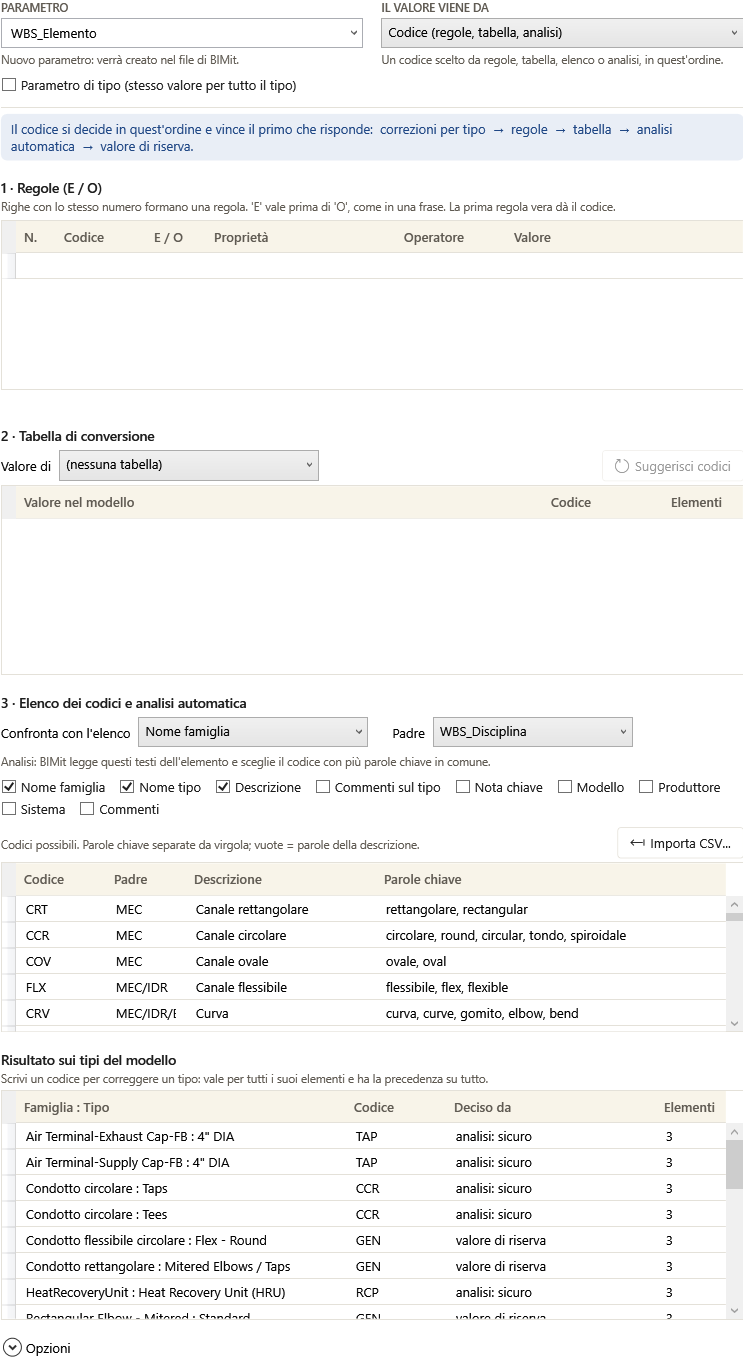
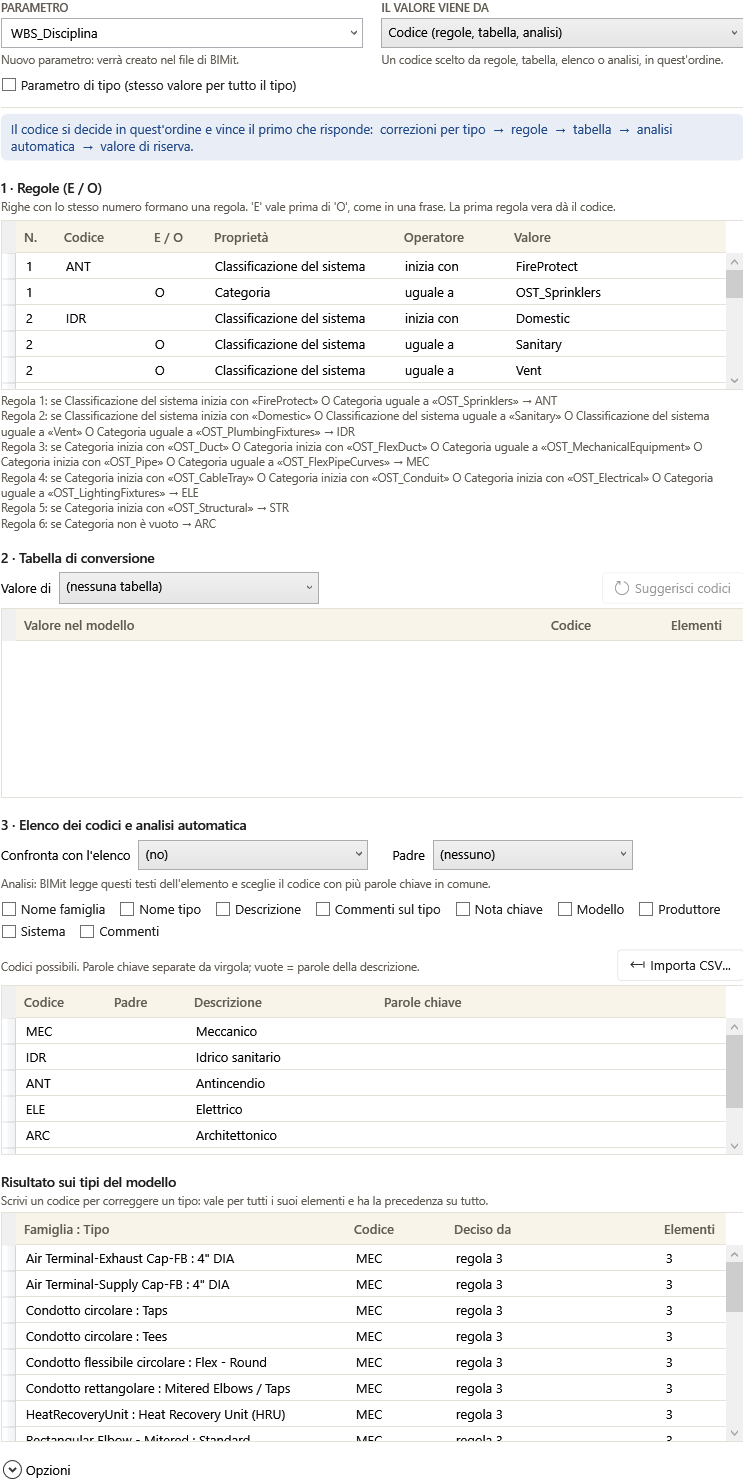
The code is decided in this order and the first one that answers wins: type overrides → rules → table → list and analysis → fallback value.
1 · Rules (AND / OR) — conditions you write.
| Column | Meaning |
|---|---|
| No. | The rule number: rows with the same number form one rule. |
| Code | The code the rule assigns (on the first row of the rule). |
| AND / OR | How the row combines with the previous one. AND takes precedence over OR, as in a sentence. |
| Property | What to read on the element (category, family name, system classification…). |
| Operator | contains, equals, starts with, ends with, does not contain, does not equal, is empty, is not empty. |
| Value | The text to compare (case and accents don't matter). |
Below the table BIMit restates each rule in plain language (Rule 1: if … → ANT): check there that it says what you mean. Add a row by typing in the last empty row; to remove one, click the small border on the left of the row and press Delete (this works in all the tables in this window).
2 · Conversion table — model value → code.
| Item | What it does |
|---|---|
| Value of | The property to convert (for example Level). (no table) = not used. |
| Value in model | The values found in the elements, with how many elements have that value (Elements). |
| Code | Type the code for each value. |
| Suggest codes | Proposes a code for values without one (for levels: Ground floor → L00, L2 → L02, Roof → L99…). Check them. |
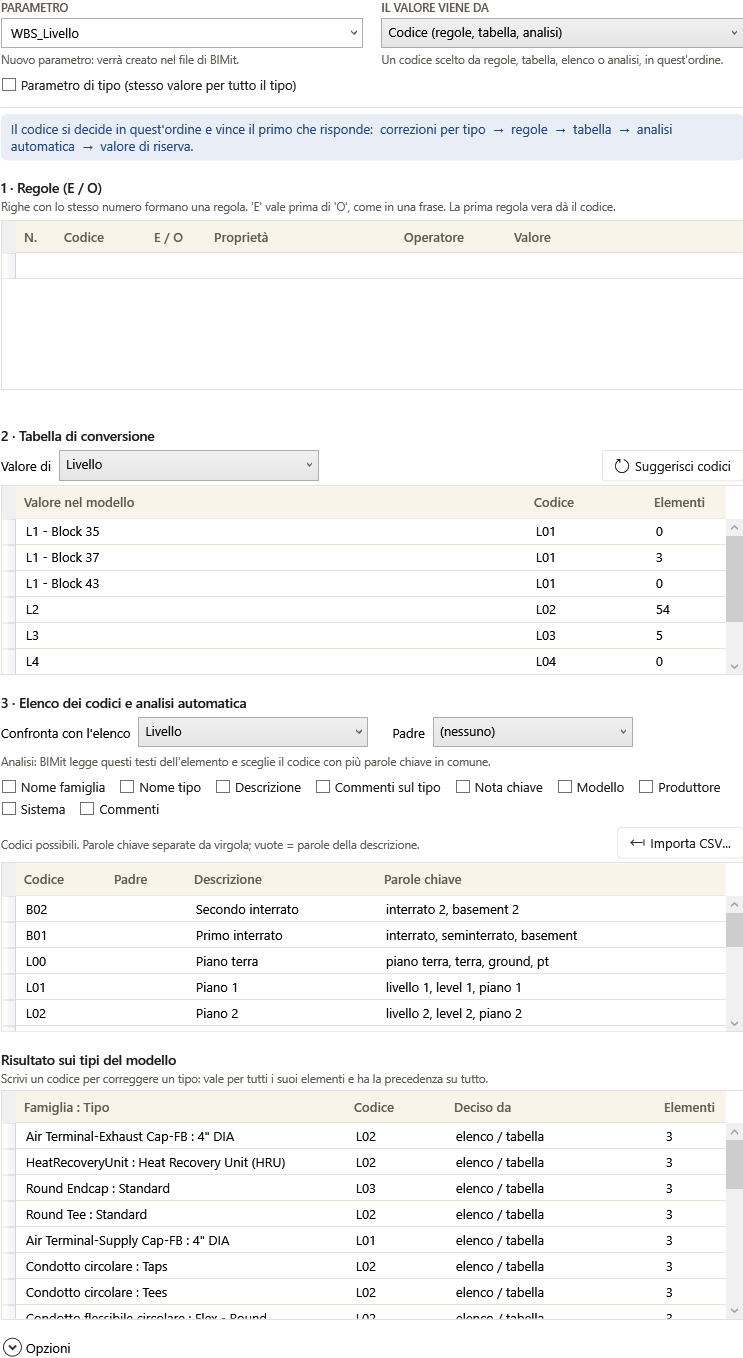
3 · Code list and automatic analysis — the possible codes and how to recognize them.
| Item | What it does |
|---|---|
| Match against list | If the value of this property equals a code or a description in the list, that code applies. (no) = don't match. |
| Parent | The code is chosen only among the rows of the parent code decided for the same element (for example the Element among those of the Discipline). |
| Analysis checkboxes | The element texts BIMit reads (family name, type name, description, comments, system…). It picks the code with the most keywords in common. |
| Import CSV… | Loads codes from a .csv or .xlsx file with the columns code; description; keywords. Asks whether to replace or append. |
| Code table | Code, Parent (one or more, separated by /), Description, Keywords separated by commas (empty = the words of the description). |
Result on model types — the outcome for each Family : Type.
| Column | Meaning |
|---|---|
| Family : Type, Elements | The type and how many elements it has. |
| Code | The decided code. Type one to override the type: it applies to all its elements and wins over everything else. |
| Decided by | rule N, list / table, analysis: certain, analysis: uncertain, to review, fallback value, decided by you, no method answered… |
The “Combine parameters” source#
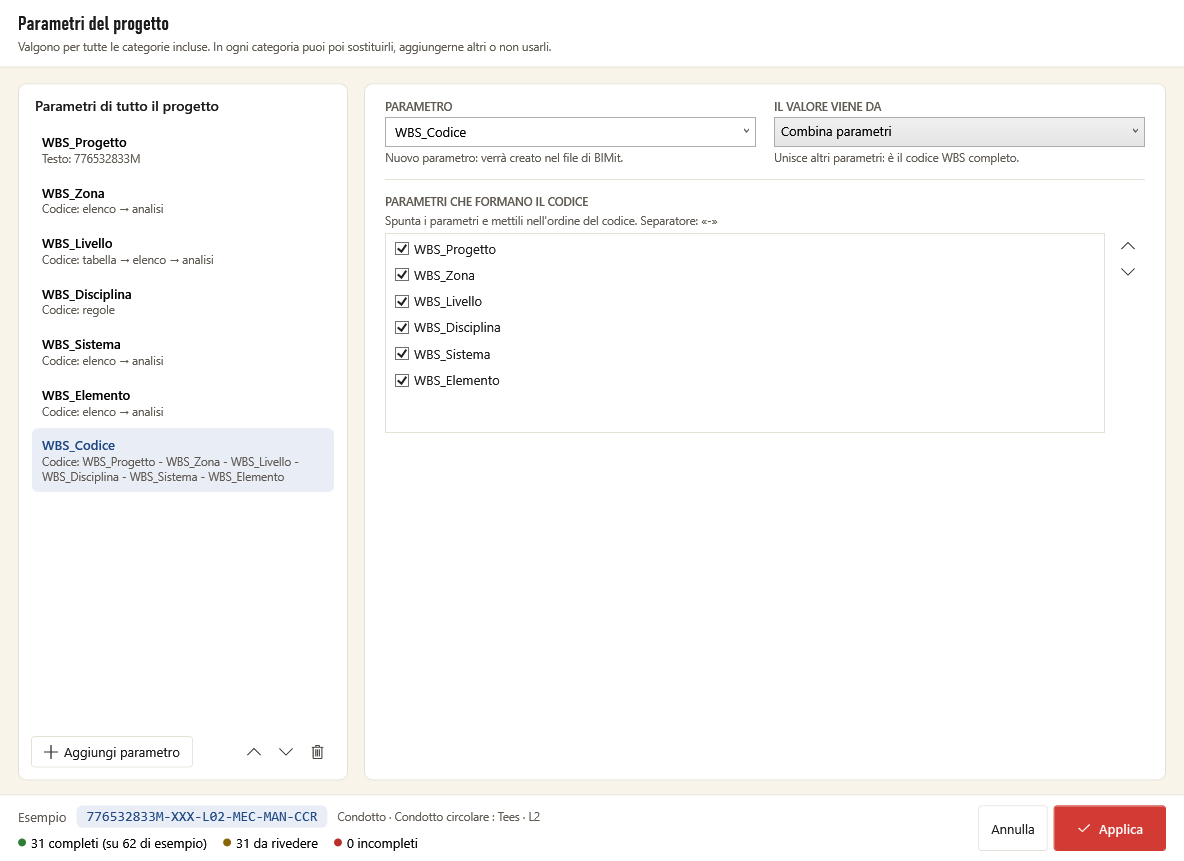
Check the parameters that make up the code and put them in order with ↑ ↓. The separator is shown above the list. There can be only one Combine parameters parameter.
Options#
| Option | What it does |
|---|---|
| Required | If the value is missing the element stays incomplete (it is not written). Uncheck it for optional parameters. |
| Fallback value | The code to use when nothing decides. The element goes to to review. |
Window footer#
| Item | What it does |
|---|---|
| Example | The code of a real element of the model, computed as you edit. |
| complete / to review / incomplete | The counts (in the project, on a sample of elements). |
| Most frequent problem | In red: what blocks the most elements. |
| Cancel | Closes without applying (asks for confirmation if you changed something). |
| Apply | Applies the changes to the configuration (then remember to Save). If there is an error it tells you; warnings can be accepted. |
A category starts from the project parameters: