The Parameters panel has three buttons: Add parameters brings the parameters of a shared parameter file into the project, Parameter manager shows and cleans up the project parameters, Family parameters removes useless parameters from loaded families.
Add parameters#
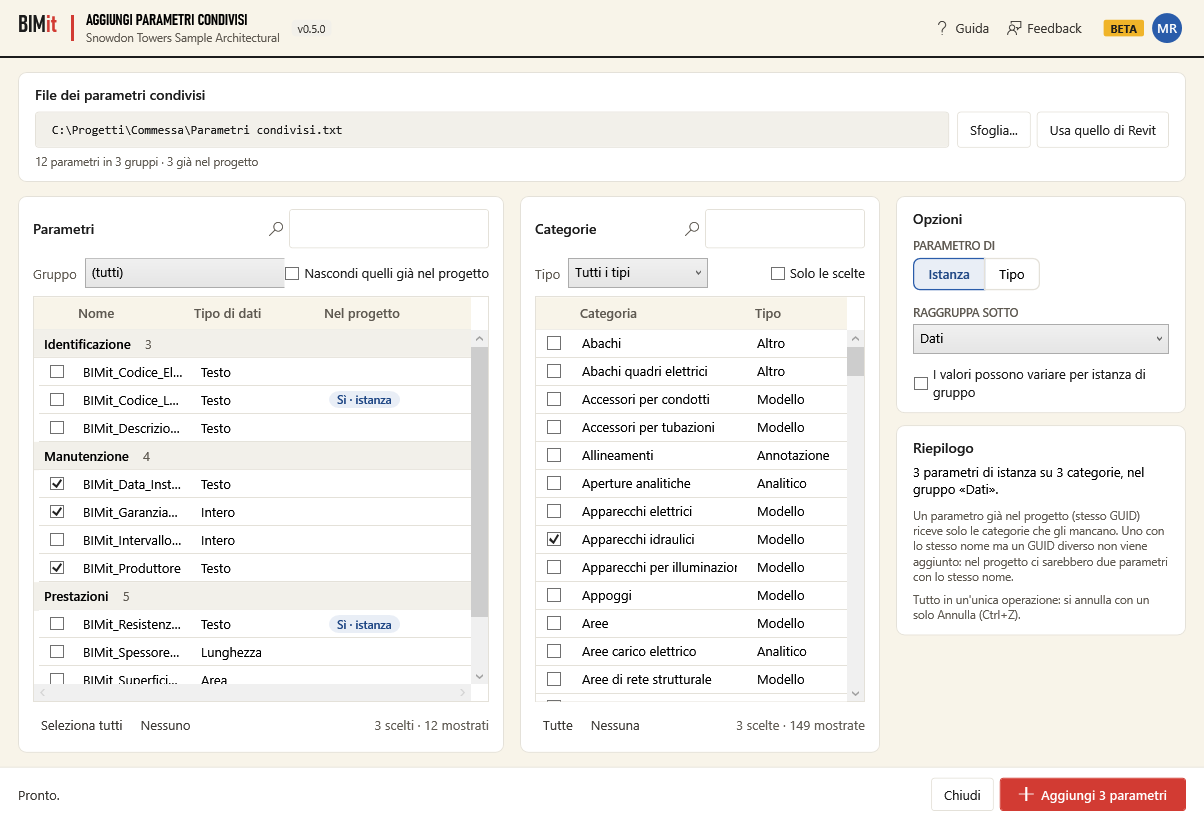
Adds the parameters of a shared parameter file (.txt) to the project. They become project parameters, on all the categories you choose, in a single operation. The button is in the Parameters panel of the BIMit tab. A parameter the project already has (same GUID) with the same binding, instance or type, receives only the categories it is missing (and, if you check it, the option Values can vary by group instance); with the other binding it stays as it is. BIMit does not write values to elements and does not change the file set in Revit.
Before you start#
- Open a project for editing. In a family, BIMit reminds you that parameters are added there from Family Types.
- If the model is read-only or a command is running in Revit, the window does not open and BIMit tells you why.
- Have the shared parameter file ready: the one set in Revit or another one.
At the top you find the common header with Add shared parameters and the model name.
Shared parameter file#
| Item | What it does |
|---|---|
| File path | The file BIMit is reading. On opening it is the one set in Revit (Manage → Shared Parameters), if it exists. |
| Browse... | Chooses another .txt file. |
| Use Revit's file | Goes back to the file set in Revit. Disabled if no file is set in Revit or if that file no longer exists. |
| Row below | How many parameters and groups the file has and how many are already in the project (12 parameters in 3 groups · 2 already in the project). If no file is set in Revit, or it no longer exists, it tells you here. |
BIMit only reads the file and does not change Revit's setting. If Revit cannot read the file, BIMit tells you and the list stays as it was.
Parameters#
On the left are the parameters of the file, divided by the file's groups. At the head of each group you see its name and how many parameters it shows. Click a column header to sort.
| Item | What it does |
|---|---|
| 🔍 search box | Filters by name, group or data type. Every word you type must appear. |
| Group | Shows only one group of the file. (all): all groups. |
| Hide those already in the project | Hides the parameters the project already has (same GUID). |
| Checkbox on the left of each row | Picks the parameter. With several rows highlighted (Ctrl or Shift), Space checks them all. If they were all checked already, it unchecks them. |
| Name | The parameter name. Hover to see the description and the GUID. |
| Data type | For example Text, Length (in Revit's language) or Family Type: Doors (the category in Revit's language). |
| In project | Empty: the parameter is new. Yes · instance or Yes · type: it is already in the project with the same GUID. Name already used: the project has another parameter with this name and a different GUID, so it will not be added. Hover for details. |
| Select all · None | Checks or unchecks all those shown. |
| … chosen · … shown | How many parameters you have checked and how many you see with the filters. |
Categories#
In the middle are all the project categories that accept parameters, including those without elements. Names are in Revit's language.
| Item | What it does |
|---|---|
| 🔍 search box | Filters by category name. |
| Type | All types, Model, Annotation, Analytical, Other. |
| Chosen only | Shows only the checked categories. |
| Checkbox on the left of each row | Picks the category. Space works as for parameters. |
| Category, Type | Name and type of the category. |
| All · None | Checks or unchecks all those shown. |
| … chosen · … shown | How many categories you have checked and how many you see. |
Options and Summary#
They are on the right. The options apply to all the chosen parameters.
| Item | What it does |
|---|---|
| PARAMETER · Instance / Type | Instance (the initial choice): one value per element. Type: one value for all elements of the same type. |
| GROUP PARAMETER UNDER | The group in which the parameter appears in Properties. You can choose any Revit group, plus Other. Initially Data. Applies only to new parameters. |
| Values can vary by group instance | Each instance of a model group can have a different value. Works only with Instance: with Type it is disabled. Also applies to instance parameters already in the project. |
| Summary | Says in one sentence what you are about to do, for example 3 instance parameters on 5 categories, in the “Data” group. While a choice is missing: Choose the parameters and the categories. Below are two reminders: what happens to parameters with the same GUID or with the same name but a different GUID, and Ctrl+Z. |
Window footer#
| Item | What it does |
|---|---|
| Message on the left | Says what is missing: Choose the shared parameter file., Choose the parameters to add., Choose the categories. When everything is ready: Ready. After adding it shows the counts, for example Added 2, updated 1, already present 0. If something went wrong, it adds not added N. |
| Close | Closes the window. |
| Add N parameters | Adds the chosen parameters to the chosen categories. Disabled while the file, a parameter or a category is missing. |
When you click Add#
First BIMit checks that the file is still there and that the model can be edited. If the file has disappeared in the meantime, it asks you to choose it (Choose the shared parameter file.). If the model has become read-only or has an operation in progress, it tells you (The model is read-only or has an operation in progress.). In these cases it does nothing.
Then it rereads the file. If Revit cannot reread it, Unable to add the parameters appears with the reason: the model does not change and the checks stay. Otherwise BIMit checks each chosen parameter by its GUID:
| The parameter | What happens | In the report |
|---|---|---|
| New | Becomes a project parameter, instance or type. It goes on the chosen categories, in the group set in GROUP PARAMETER UNDER. If it is an instance parameter and you checked Values can vary by group instance, it also gets this option. | Added |
| Already in the project, same binding (instance and instance, type and type) | Receives the categories it is missing. The categories it already has stay. It keeps its group. If you checked Values can vary by group instance, it also gets this option. | Parameters already in the project updated, with the change made (+2 categories, values vary by group) |
| Already in the project, nothing to change | Stays as it is. | Already present |
| Already in the project with the other binding | Stays as it is. BIMit does not turn an instance parameter into a type parameter, or vice versa. | Already present (… not changed) |
| Name already used | Not added, because the project would end up with two parameters with the same name. | Not added |
Everything happens in a single operation. In Revit's Undo list you find it as BIMit: add shared parameters.
The report
At the end a message lists the parameters item by item. Only the items with at least one parameter appear, each with its number (for example Added: 3). For each item you see the first 12 rows, then ... and N more. If Revit rolled back the change, the message says so at the top.
| Item | What it contains |
|---|---|
| Added | The new parameters. |
| Parameters already in the project updated | The parameters that received categories or the group option. |
| Already present | The parameters already in place and those with the other binding (not changed). |
| Not added | Each parameter with its reason, for example the project already has a parameter with the same name (different GUID), no longer in the file (here the GUID appears instead of the name) or in use by …. With added, but values cannot vary by group the parameter was added without that option: it also appears in Added and counts in both numbers at the bottom. With already in the project, values cannot vary by group it did not get that option; if it received categories, it also appears among the updated ones. |
If there is at least one Not added or an error, the report appears as an error message.
Even before the message, BIMit rereads the file: the In project column and the row below the path update, and the parameter checks are cleared (even if Revit rolled back the change). The categories stay checked, so you can immediately do another addition, for example of type parameters.
Good to know#
- One Ctrl+Z. Each Add is a single operation and one Ctrl+Z in Revit undoes all of it. If you make several additions in a row, they are undone one at a time.
- If there is nothing to change (all are Already present or Not added), BIMit does not touch the model.
- Revit errors. Revit warnings don't stop the operation. An error, instead, undoes everything and the model stays as it was. The report says Revit rolled back the change and, if Revit gives a reason, explains it. Added and Parameters already in the project updated do not appear. The message at the bottom says No changes.
- The
.txtfile does not change. BIMit only reads it. To read it, BIMit sets the file in Revit for a moment, then restores the previous setting, even if it was empty. BIMit neither creates nor modifies shared parameter files. - No values. The parameters are added, but BIMit does not write values to elements.
- What never changes:
- the categories a parameter already has: BIMit adds categories, it never removes them;
- the instance/type binding and the group of parameters already in the project;
- parameters with the same name but a different GUID;
- the option Values can vary by group instance: BIMit only turns it on, it never turns it off.
- Duplicate names. BIMit compares the name with all project parameters, shared or not. If two chosen parameters in the file have the same name, it adds only the first, in the order the window shows them on opening (groups in alphabetical order); how you sorted the columns doesn't matter. The other one ends up in Not added with the reason the project already has a parameter with the same name (different GUID).
- Hidden checks. Checked parameters and categories stay chosen even when a filter hides them. Check the chosen counts; for categories you can also use Chosen only.
- Workshared model. A parameter already in the project should receive categories or the group option, but another user is using it or it has changed in the central model? Then it stays untouched. It ends up in Not added with the reason already in the project, not changed (in use by …) or already in the project, not changed (changed in the central model: reload latest and try again). If there is nothing to change, or if it has the other binding, it ends up in Already present as always. The other parameters are added anyway.
Parameter manager#
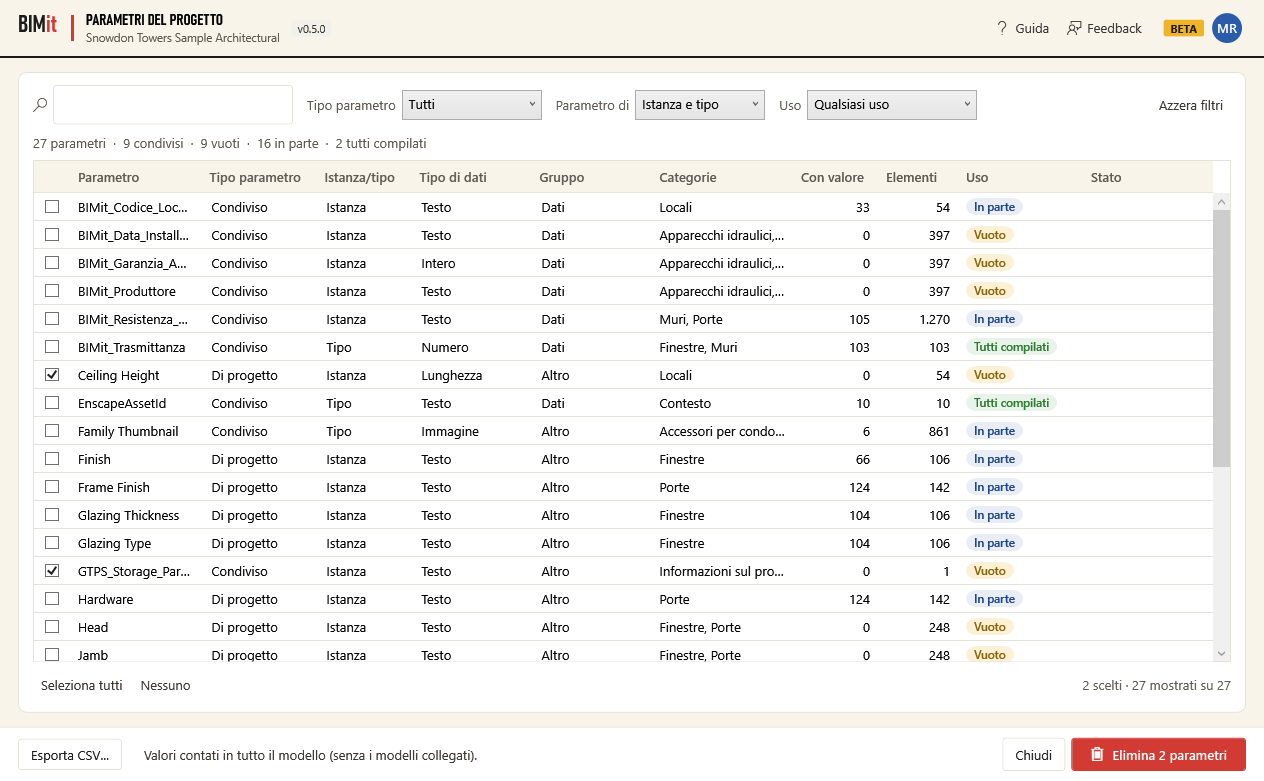
All the project parameters of the model in one list. For each one you see whether it is shared or a project parameter, instance or type, which categories it is assigned to and how many elements have a value. This way you quickly find empty or useless parameters, export the list to CSV and delete the ones you don't need in a single operation. It opens with the Parameter manager button in the Parameters panel of the BIMit tab; the window is called Project parameters.
Before you start#
- Open a project. In a family file BIMit tells you that families have no project parameters.
- The model must be editable. If it is read-only, or an operation is in progress in Revit, the window does not open.
At the top is the header with the model name. The list shows the parameters in alphabetical order. As soon as the window opens, BIMit starts counting the values (see Counting values).
Filters#
| Item | What it does |
|---|---|
| 🔍 search box | Filters by name, parameter type, instance/type, data type, group, categories and usage. If you type several words, each must appear in one of these columns. Case doesn't matter. |
| Parameter type | All, Shared (with GUID) or Project (not shared). |
| Instance/type | Instance and type, Instance or Type. |
| Usage | Any usage; Empty (already counted and with no value in any element, including those with no elements); With values (at least one element has a value); Not counted. |
| Clear filters | Empties the search and resets All, Instance and type and Any usage. |
| Summary (below the filters) | How many parameters there are and how many are shared. After counting it adds how many are empty (including those with No elements), partly filled and all filled. If counting is not finished, it also says how many are not counted. Parameters already deleted are not included. |
| Count values | Appears only if counting was interrupted or failed. Redoes it from scratch for all parameters. |
The parameter list#
Click a header to sort.
| Column | What it shows |
|---|---|
| Checkbox on the left | Checks the parameter for deletion. On opening no box is checked. If you highlight several rows (Ctrl or Shift), Space checks them all. If they were all checked already, it unchecks them. |
| Parameter | The name. Hover over it: you see the GUID if the parameter is shared, otherwise Non-shared project parameter. |
| Parameter type | Shared or Project. |
| Instance/type | Instance or Type. |
| Data type | In Revit's language, for example Text, Length or Family Type: Doors. |
| Group | The properties group in which Revit shows the parameter (for example Data). If the parameter has no group, Other appears. |
| Categories | The categories the parameter is assigned to. Hover over it to see them one per line. - means no category. |
| With value | How many elements have a value. – means the parameter has not been counted yet. |
| Elements | How many elements have the parameter. For a type parameter types are counted, not instances. – means not counted yet. |
| Usage | All filled, Partly filled, Empty, No elements (no element has the parameter) or Not counted. |
| Status | Empty until you delete something. Then it shows Deleted or Not deleted. Hover over it for the reason. |
Below the list:
| Item | What it does |
|---|---|
| Select all | Checks all the parameters shown by the filters. |
| None | Unchecks the parameters shown. |
| Counter on the right | Shows N chosen · N shown of N. If some checked parameters are hidden by the filters, it adds · N chosen hidden by filters (not deleted). The total (of N) also includes rows already deleted. |
Window footer#
| Item | What it does |
|---|---|
| Export CSV… | Saves the parameters shown to a CSV file (see below). |
| Message and bar | Show the count in progress (Counting values 3/25 · Doors: read 3 of 25; a category with both instance and type parameters is read twice and counts twice in the total, see Counting values) and the outcome of operations, for example Count failed: … |
| Stop | Appears only during counting. Stops it shortly after you click it. |
| Close | Closes. Disabled during counting. |
| Delete | Disabled during counting and until you check at least one of the parameters shown. Then it becomes Delete N parameters (Delete 1 parameter) and deletes the checked parameters among those shown. |
Counting values#
For each parameter BIMit counts how many elements have it and how many have a value. It reads one category at a time. If a category has both instance and type parameters, it reads it twice: once for the elements and once for the types. While counting, the list, Delete, Close and Export CSV… are disabled. The filters, Select all and None remain usable. Counting only reads: the model does not change.
- When an element has a value:
- a text has a value if it is not empty (a text made only of spaces counts as empty);
- a number or a Yes/No has a value if it has been set, even if it is 0 or No;
- a reference (for example a family type) has a value if it is set, i.e. if it is not
<None>.
- BIMit reads only the open model, not linked models. At the end you see Values counted in the whole model (linked models excluded).
- If you click Stop, you see Count interrupted: parameters not counted show “–”. Parameters already counted stay counted. To complete, click Count values: counting restarts from scratch for all parameters. If you interrupt it again, only those finished in this round stay counted.
- If you close the window with the X during counting, counting stops but the window stays open. Then you can close it.
- A parameter without categories shows No elements.
Export CSV#
- The file contains the parameters shown with the current filters, in the same order as the list, except those already deleted. If there are none, BIMit says No parameters to export.
- The proposed name is
<model>_parametri.csv, in the Documents folder. - The columns are Parameter, Parameter type, Instance/type, Data type, Group, Categories, GUID (shared only), With value, Elements, Usage and Element Id. With value and Elements stay empty for parameters not counted.
- The format is designed for Excel with Italian regional settings:
;separator, UTF-8 (accented letters stay correct). - After saving, at the bottom you read CSV saved: … with the file path and the number of parameters.
- If you see Unable to save the file (is it open in Excel?), close the file in Excel and try again.
Deleting parameters#
- Filter the list (for example Usage → Empty) and check the parameters to delete.
- Click Delete N parameters. First BIMit checks that the model is still editable. If it has become read-only or an operation is in progress, you see The model is read-only or has an operation in progress. and nothing is deleted. Otherwise the BIMit · Delete parameters window asks for confirmation and shows you:
- the names (up to 12), with parameter type and instance/type; if there are more, ... and N more;
- WARNING, if some parameter has values in elements: those values will be lost;
- how many parameters have not been counted, i.e. those you don't know whether they have values;
- for shared parameters, that they are removed from the project but their definition stays in the families that use it;
- It can be undone with a single Undo (Ctrl+Z).
- Yes deletes. No goes back to the list and changes nothing.
| Parameter | What happens |
|---|---|
| Project | Deleted entirely: definition, categories and values. |
| Shared | Removed from the project parameters. The elements of the categories it was assigned to no longer have it, and their values are lost. The shared definition (GUID) stays in the model, even though it no longer appears in the list, and in the families that use it: the elements of those families keep the parameter and its value. |
The result
- The Status column shows Deleted or Not deleted. Deleted rows stay in the list, but you can no longer check them. Rows not deleted stay checked.
- At the bottom you read Deleted N. If something failed, you read Deleted N, not deleted M.
- If some parameter was not deleted, a window appears with the number of parameters deleted and the list (up to 15) of those skipped, each with its reason. If Revit rolled back the deletion, the window shows Revit's message and Deleted: 0. The reason for each row is in the tooltip of the Status column.
- If the deletion stops because of an unexpected error, you see Deletion failed: with the error message.
| Reason | Meaning |
|---|---|
| no longer in the project | The parameter is no longer in the model. |
| in use by another user | The model is workshared and another user has borrowed the parameter. |
| Revit did not remove the parameter / Revit did not delete the parameter | Revit refused the operation on that parameter. |
| still in the project | After the deletion BIMit rechecks the model and still finds the parameter. |
| Revit rolled back the deletion… | Revit gave an error. Nothing is deleted and the message says why. |
| other text | Revit's error message for that parameter. The other parameters are deleted anyway. |
Good to know#
- One Ctrl+Z in Revit undoes the whole deletion. In Revit's list of operations it is called BIMit: delete project parameters.
- If Revit gives an error during the deletion, it undoes everything and the model stays as it was. Revit warnings don't stop the operation.
- If none of the chosen parameters can be deleted, the model does not change.
- Only the parameters that are checked and shown are deleted. Parameters checked but hidden by the filters stay in the model.
- BIMit identifies each parameter by its Id in Revit, never by its name. A global parameter or another parameter with the same name is never touched. Global parameters do not appear in the list.
- Only project parameters appear, shared or not. Family parameters are not in this list: for those, use Family parameters.
- The shared parameter file is not touched.
- In workshared models, parameters borrowed by another user are skipped; the others are deleted. If a parameter was changed in the central model after your last reload, Revit may roll back the whole deletion: reload latest and try again. As with any change, your colleagues see it after you synchronize with central.
- Counting does not read linked models and does not modify the model.
- If the project has no project parameters, at the bottom you read The project has no project parameters.
Family parameters#
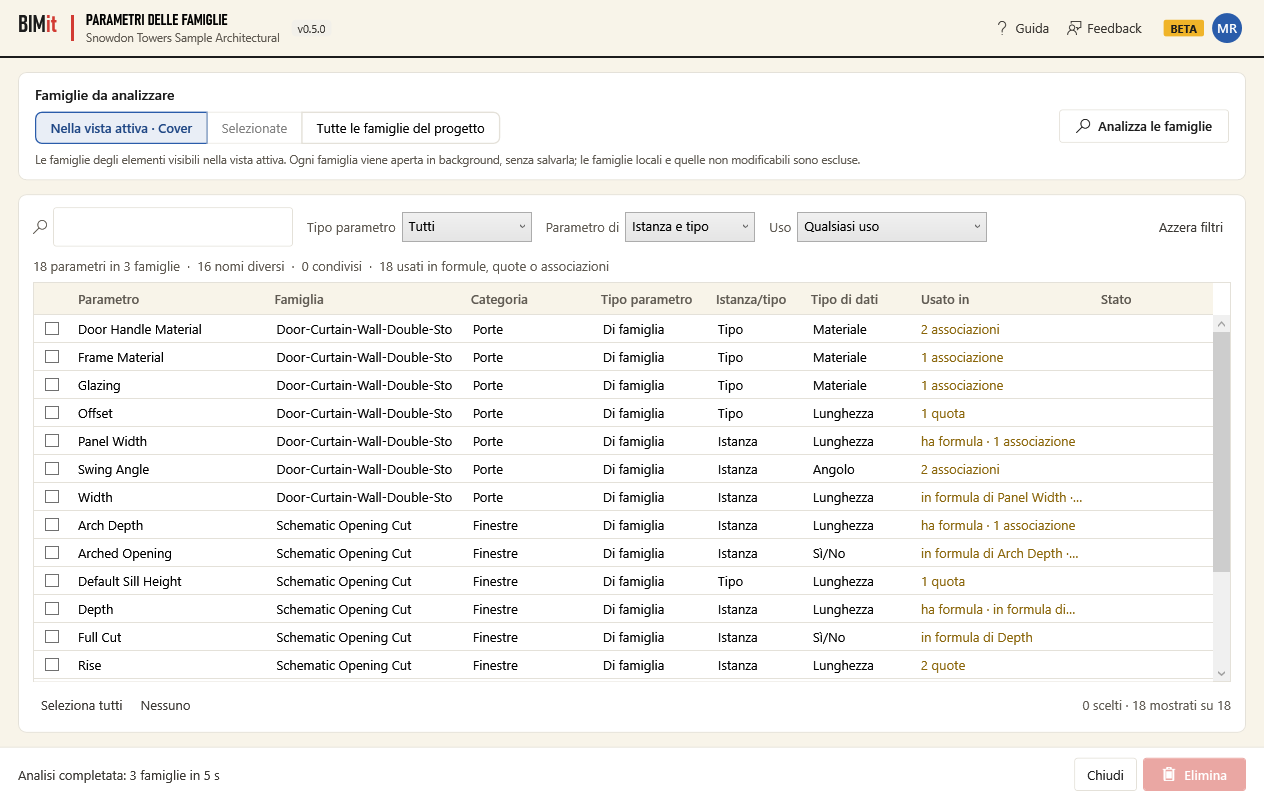
Removes unneeded parameters from the families loaded in the project, without opening them by hand one by one. BIMit opens each family in the background and shows you its parameters: shared or family, instance or type, and whether they are used in formulas, dimensions or associations. It deletes the ones you check and reloads the family into the project, keeping the values. It opens with the Family parameters button in the Parameters panel of the BIMit tab. The window is also called Family parameters. For the buttons at the top see The window header.
Before you start#
- Open a project for editing. The button does not open the window from a family file, from a read-only model or with a Revit operation in progress, and tells you why.
- If you want to work only on some families, select them before clicking the button: elements, tags, or families or types in the Project Browser. The window uses the selection of that moment.
- Close in the Family Editor the families to analyze: open ones are skipped.
Families to analyze#
| Item | What it does |
|---|---|
| In the active view · view name | The families of the elements visible in the active view, including tags and other annotations. It is the starting choice. |
| Selected (N elements) | The families of the selected elements. Disabled if you have selected nothing. System elements (walls, floors…) have no loaded family and are ignored. |
| All families in the project | All loaded families, including those with no elements in the model. The analysis can take a few minutes. |
| Text below the options | Reminds you what is analyzed. Each family is opened in the background, without saving it. |
| Analyze families | Opens the families one at a time and reads their parameters. Replaces the list of the previous analysis. If it finds no families to analyze, the previous list stays. |
During the analysis the window footer shows Analysis 12/40 · family name and Stop appears. At the end you see a summary, for example Analysis completed: 40 families in 35 s · 2 excluded (in-place or not editable) · 1 not analyzed. If you click Stop, the summary starts with Analysis interrupted: and the list contains only the families already analyzed. If a family does not open, a message lists it with the reason (up to 15 families).
In some cases BIMit does not start the analysis and tells you why: it finds no editable families, the model is read-only or has an operation in progress, or families cannot be searched in the active view. In the last case choose Selected or All families in the project. In all these cases the previous list stays.
Filters#
| Item | What it does |
|---|---|
| 🔍 search box | Filters by parameter, family, category, parameter type (Shared/Family), instance or type, data type or usage. Not case-sensitive. If you type several words, all of them must be present. |
| Parameter type | All, Shared, Family. |
| Instance/type | Instance and type, Instance, Type. |
| Usage | Any usage, Unused, In formulas, dimensions or associations. |
| Clear filters | Empties the search and resets the three filters to the first item. |
Below the filters there is a summary row: N parameters in N families · N distinct names · N shared · N used in formulas, dimensions or associations. The row counts all the analyzed parameters, including those hidden by the filters, but not those already deleted. Before the first analysis it says Choose the families and click “Analyze families”.
Parameter table#
There is one row for each parameter of each family. Revit system parameters do not appear, because they cannot be deleted. Click a header to sort.
| Column | Meaning |
|---|---|
| Checkbox | Checks the parameters to delete. Highlight several rows (Ctrl or Shift) and press Space: you check them all, or uncheck them if they were all checked already. A parameter already deleted can no longer be checked. |
| Parameter | The name. Hover to see the GUID (if it is shared) and the formula (if it has one). |
| Family, Category | The family that contains the parameter and its category. |
| Parameter type | Shared or Family. |
| Instance/type | Instance or Type. |
| Data type | In Revit's language: Length, Text, Family Type: Doors… |
| Used in | Where the parameter is used in the family. in formula of …: the parameters that use it in their formula. N dimensions: the dimensions labeled with it. N associations: the parameters of elements in the family associated with it. has formula and reporting are information only. |
| Status | Empty until you delete. Then it becomes Deleted, Not deleted (hover to see the reason) or Still present. |
For the Usage filter a parameter is used only if it appears in the formula of another parameter, in a dimension or in an association. has formula and reporting don't count.
Below the table#
| Item | What it does |
|---|---|
| Select all | Checks all the parameters shown by the filters. |
| None | Unchecks those shown. |
| Counter on the right | N chosen in N families · N shown of N. If some checked parameters are hidden by the filters, it adds N chosen hidden by filters (not deleted). |
Window footer#
| Item | What it does |
|---|---|
| Message on the left and bar | Shows the work in progress (Analysis…, Deleting 2/5 · family name, Checking…) and then the outcome. |
| Stop | Appears during the analysis and the deletion. It stops after the current family and the message becomes Stopping after the current family.... The final check after the deletion cannot be interrupted: it always runs to the end. |
| Close | Closes. Disabled during the analysis and the deletion. |
| Delete N parameters | Deletes the parameters checked and shown. Until at least one parameter among those shown and not yet deleted is checked, it stays disabled and is called just Delete. It also stays disabled if all the checked parameters are hidden by the filters. |
What happens when you delete#
First BIMit asks for confirmation and shows you the families with their parameters. It shows up to 10 families and 6 parameters per family; the others appear as .... If a parameter is used in formulas, dimensions or associations, a WARNING appears: Revit also deletes the formulas that use it and the dimension labels. If the model is read-only or has an operation in progress, BIMit stops before starting and tells you.
Then it works family by family:
- in a workshared model, it checks that the family is not in use by another user;
- it opens the family in the background;
- it checks that each parameter is still the one analyzed: same name, still shared or family as before and, if shared, same GUID;
- it deletes the parameters;
- it reloads the family into the project: the values of the remaining parameters don't change and shared nested families stay those of the project;
- it closes the family without saving it.
At the end BIMit rereads the reloaded families (Checking the reloaded families…) and updates the table. Deleted rows become Deleted and can no longer be checked.
The report. In the footer you read Deleted N parameters from N families. If needed, not deleted N and interrupted: N not processed are added. Parameters not processed stay checked, with an empty Status. A message then reports the outcome for each family (up to 20): Family: deleted A, B or Family: X not deleted (reason).
| Reason | What to do |
|---|---|
| family in use by another user | The model is workshared and the family is borrowed by a colleague. Ask them to synchronize and relinquish the elements, then try again. |
| the family is open in the Family Editor: close it and try again | Close the family in the Family Editor and try again. |
| the family is no longer in the project, family not editable, Revit did not open the family | The family has changed since the analysis, or Revit could not open it. Click Analyze families again and retry. |
| not found: analyze again, changed: analyze again | The parameter has changed since the analysis (name, shared or family, GUID). Click Analyze families again. |
| Revit did not delete the parameter, or a Revit message | Revit refused only that parameter, which stays in the family. The other parameters of the same family proceed normally. |
| family edit rolled back, sometimes followed by : … | Revit reported an error in the family. If Revit gave a description, you find it after the colon. Nothing was deleted for that family. |
| reload failed, sometimes followed by Revit's message | Revit did not reload the family. In the project that family does not change. |
| change not applied to the project: … | An unexpected error occurred, for example during the reload, and you find it after the colon. In the project the family does not change: analyze again and retry. |
| Still present (Status column) | The family was reloaded, but the parameter is still there. In the report it appears among the deleted ones anyway. |
Good to know#
- One Ctrl+Z is enough. All the families are modified and reloaded in a single operation, which in Revit's Undo list is called BIMit: delete family parameters. If Revit does not allow the families to be reloaded in a single operation, BIMit goes family by family: in that case you need one Ctrl+Z per family.
- Stop stops after the current family. The families already processed stay modified; you can undo them with Ctrl+Z.
- During the analysis and the deletion the window does not close: if you try to close it, it is like clicking Stop.
- The window blocks Revit while it is open: to change the selection or the active view, close it, make the change and reopen it.
- The change applies to all instances and all types of the family, even outside the active view.
- Only the parameters checked and shown by the filters are deleted.
- The
.rfafile in your library does not change: BIMit modifies only the family loaded in the project and does not save it. If you reload the family from the library, the deleted parameters come back. - Revit system parameters, in-place families and non-editable families are not touched.
- The Used in column looks only inside the family. It does not check schedules, tags or filters in the project that show the parameter.
- Revit warnings inside the family close by themselves. If Revit immediately refuses a parameter, only that parameter stays (the reason is Revit's message) and the others in the same family are deleted. If instead Revit reports an error when committing the family edit, nothing is deleted for that family (family edit rolled back). The error does not affect the other families.
- Workshared models: families in use by another user are skipped. Your colleagues see the changes after you synchronize with central.
- BIMit does not save the report to a file: it appears only on screen. The list is not saved, so when you reopen the window you have to analyze again.
- If Revit interrupts the operation, BIMit tells you: analyze the families again before continuing.