Introduction to Element Collectors#
The FilteredElementCollector is the foundation of any Revit automation. Every time you need to work with elements — walls, doors, windows, views — you must first find them in the model. The collector is the tool that does this.
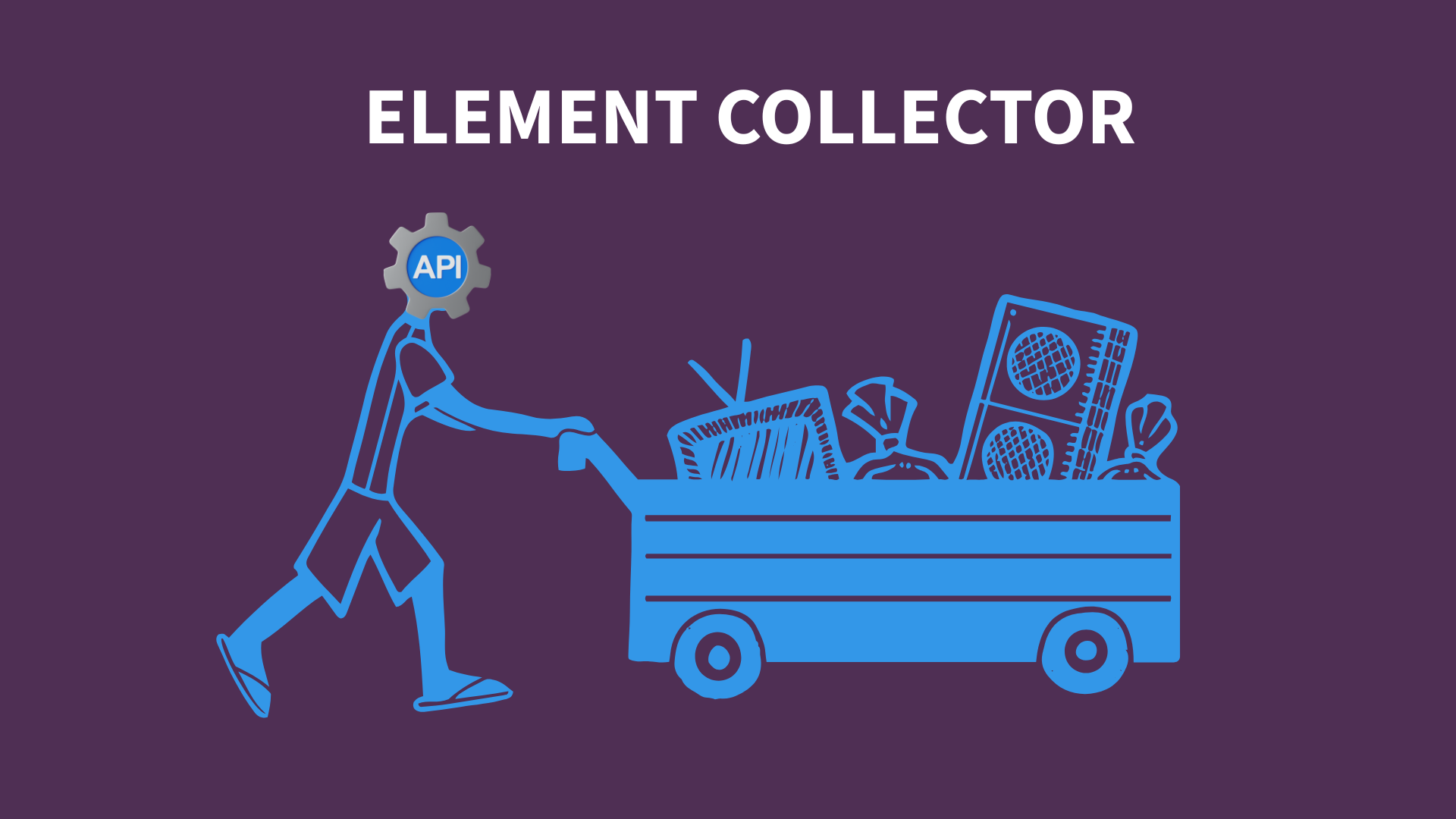
Practical analogy: Imagine your Revit model as a huge warehouse. The FilteredElementCollector is the automated search system that finds exactly what you need, without having to search manually.
This guide shows you 35+ different ways to filter elements, from basic filters (category) to advanced ones (geometry, parameters, location).
This is the second article in a three-part series on Revit API development:
- Getting Started with BIM Automation
- Element Collection with FilteredElementCollector (this article)
- UI Selection Methods
Why Use Collectors Instead of Manual Selection?#
Typical scenario without automation:
- Open Revit
- Manually select 50 walls
- Change a parameter on each one
- Repeat for every floor of the project
With a collector:
- A script automatically finds all walls that meet precise criteria
- Modifies all in a single operation
- Can be repeated instantly on other projects
Key advantages:
- Precision — no forgotten elements
- Speed — seconds instead of minutes/hours
- Reusability — same script for different projects
- Documentation — the code documents exactly what was done
Required Libraries and Setup#
Before we begin, every Python script in Dynamo that uses Revit API must start with these lines:
1import clr2clr.AddReference("RevitAPI")3from Autodesk.Revit.DB import *4clr.AddReference('RevitServices')5from RevitServices.Persistence import DocumentManager6
7doc = DocumentManager.Instance.CurrentDBDocument
What this code does:
clr.AddReference— loads the Revit libraries into Pythonfrom Autodesk.Revit.DB import *— imports all Revit API classes (Wall, Door, FilteredElementCollector, etc.)DocumentManager— provides access to the current Revit filedoc— the variable you'll use to access the model
Note: Copy this block at the beginning of every Python Script node in Dynamo.
Getting Revit Application Information#
You can retrieve various properties of the Revit application using the Application object:
1app = doc.Application2version_info = f"""3Version Number: {app.VersionNumber}4Version Name: {app.VersionName}5Version Build: {app.VersionBuild}6Sub Version Number: {app.SubVersionNumber}7Product: {app.Product}8Language: {app.Language}9User Data Folder: {app.CurrentUsersDataFolderPath}10"""11print(version_info)Collecting Model Categories#
To start working with Revit elements, it's useful to understand the available categories:
1from Autodesk.Revit.DB import CategoryType2
3# Get all categories4all_categories = doc.Settings.Categories5
6# Filter for model categories7model_categories = [c for c in all_categories if c.CategoryType == CategoryType.Model]8
9# Print category names10for category in model_categories:11    print(category.Name)
Category Types#
In Revit API, categories and types are identified by enumerated values. Here's how you can work with them:
1door_category = Category.GetCategory(doc, BuiltInCategory.OST_Doors)2sub_categories = door_category.SubCategories3
4print(f"The 'Doors' category has {sub_categories.Size} subcategories:")5for sub_category in sub_categories:6    print(f"- {sub_category.Name}")
Changes in Revit 2022#
Revit 2022 introduced 64-bit identifiers for built-in categories:
1door_category_type_id = Category.GetBuiltInCategoryTypeId(BuiltInCategory.OST_Doors)2print(f"The TypeId for the 'Doors' category is: {door_category_type_id}")Filter by Element Class#
Understanding Classes vs Categories#
Fundamental concept: In Revit API, "Class" and "Category" are two different things, and confusion between them is the most common mistake for beginners.
- Class = The type of object in the code (e.g.,
Wall,Floor,FamilyInstance) - Category = The functional group you see in the Revit interface (e.g., "Walls", "Floors", "Doors")
Practical example:
- A door is a
FamilyInstance(class) of the "Doors" category (BuiltInCategory.OST_Doors) - A window is a
FamilyInstance(class) of the "Windows" category (BuiltInCategory.OST_Windows) - A wall is a
Wall(class) of the "Walls" category (BuiltInCategory.OST_Walls)
When to filter by class:
- When you want all elements of that object type
- For operations specific to the class type (e.g., only
Wallhas.Flip())
When to filter by category:
- When you want to distinguish between similar objects (doors vs windows, both FamilyInstance)
- To read category-specific parameters
Using OfClass Shortcut#
The simplest way to filter by class is using the OfClass method:
1# Get all walls (instances + types)2walls = FilteredElementCollector(doc).OfClass(Wall).ToElements()3
4# Get only floor types (not instances)5floor_types = FilteredElementCollector(doc).OfClass(FloorType).ToElements()6
7# Get all family instances (doors, windows, furniture, etc.)8family_instances = FilteredElementCollector(doc).OfClass(FamilyInstance).ToElements()
What does .ToElements() mean?
The collector doesn't immediately find all elements — it "promises" them. .ToElements() tells the collector to actually execute the search and return the complete list.
Alternatives to .ToElements():
.FirstElement()— returns only the first element found (faster).GetElementCount()— counts elements without loading them (very fast).ToElementIds()— returns only Ids instead of full objects (lightweight)
Get all family instances
family_instances = FilteredElementCollector(doc).OfClass(FamilyInstance).ToElements()
1### Main Revit API Classes2
3Here are the most commonly used classes for filtering:4
5| Class | Description |6|-------|-------------|7| `Wall` | Wall elements |8| `Floor` | Floor elements |9| `Ceiling` | Ceiling elements |10| `FamilyInstance` | All family-based elements |11| `Level` | Level elements |12| `Grid` | Grid lines |13| `View3D` | 3D views |14| `ViewPlan` | Plan views |15| `ViewSection` | Section views |16| `ViewSheet` | Sheets |17| `Material` | Materials |18| `Family` | Loaded families |19
20---21
22## Essential Quick Filters23
24Quick filters are evaluated at the memory level and are the most efficient:25
26```python27# Get only element types (not instances)28types = FilteredElementCollector(doc).WhereElementIsElementType().ToElements()29
30# Get only element instances (not types)31instances = FilteredElementCollector(doc).WhereElementIsNotElementType().ToElements()32
33# Get all elements of a category34doors = FilteredElementCollector(doc).OfCategory(BuiltInCategory.OST_Doors).ToElements()
Combining Quick Filters#
You can chain multiple filters for more precise results:
1# Get all door instances (not door types)2door_instances = FilteredElementCollector(doc) \3    .OfCategory(BuiltInCategory.OST_Doors) \4    .WhereElementIsNotElementType() \5    .ToElements()6
7# Get all wall types8wall_types = FilteredElementCollector(doc) \9    .OfClass(WallType) \10    .WhereElementIsElementType() \11    .ToElements()
Filter by Parameter Values#
One of the most powerful features is filtering by parameter values:
1from Autodesk.Revit.DB import FilteredElementCollector, BuiltInParameter2from Autodesk.Revit.DB import ParameterValueProvider, FilterStringRule3from Autodesk.Revit.DB import FilterStringEquals, ElementParameterFilter4
5# Create a parameter value provider6provider = ParameterValueProvider(ElementId(BuiltInParameter.ALL_MODEL_MARK))7
8# Create a filter rule (elements where Mark equals "A1")9rule = FilterStringRule(provider, FilterStringEquals(), "A1", False)10
11# Create and apply the filter12param_filter = ElementParameterFilter(rule)13
14elements = FilteredElementCollector(doc) \15    .OfCategory(BuiltInCategory.OST_Walls) \16    .WherePasses(param_filter) \17    .ToElements()
Filter by Level#
Filter elements associated with a specific level:
1# First, get the level you want to filter by2levels = FilteredElementCollector(doc).OfClass(Level).ToElements()3target_level = None4
5for level in levels:6    if level.Name == "Level 1":7        target_level = level8        break9
10if target_level:11    # Create a level filter12    level_filter = ElementLevelFilter(target_level.Id)13    14    # Get all elements on that level15    elements_on_level = FilteredElementCollector(doc) \16        .WherePasses(level_filter) \17        .ToElements()18    19    print(f"Found {len(elements_on_level)} elements on {target_level.Name}")
Elements within a BoundingBox#
Find elements that are completely within a defined bounding box:
1from Autodesk.Revit.DB import BoundingBoxContainsPointFilter, Outline2
3# Define the bounding box corners4min_point = XYZ(0, 0, 0)5max_point = XYZ(100, 100, 30)  # feet6
7# Create an outline from the points8outline = Outline(min_point, max_point)9
10# Create the bounding box filter11bb_filter = BoundingBoxIsInsideFilter(outline)12
13# Collect elements within the box14elements_in_box = FilteredElementCollector(doc) \15    .WherePasses(bb_filter) \16    .ToElements()17
18print(f"Found {len(elements_in_box)} elements within the bounding box")
Elements Intersecting a BoundingBox#
Find elements that intersect with a bounding box:
1from Autodesk.Revit.DB import BoundingBoxIntersectsFilter, Outline2
3# Define the search volume4min_point = XYZ(0, 0, 0)5max_point = XYZ(50, 50, 15)6
7outline = Outline(min_point, max_point)8bb_intersect_filter = BoundingBoxIntersectsFilter(outline)9
10intersecting_elements = FilteredElementCollector(doc) \11    .WherePasses(bb_intersect_filter) \12    .ToElements()13
14print(f"Found {len(intersecting_elements)} elements intersecting the box")
Filter Family Symbols (Types)#
Get all types of a specific family:
1# Collect all family symbols (types)2family_symbols = FilteredElementCollector(doc) \3    .OfClass(FamilySymbol) \4    .ToElements()5
6# Group by family name7families = {}8for symbol in family_symbols:9    family_name = symbol.Family.Name10    if family_name not in families:11        families[family_name] = []12    families[family_name].append(symbol.Name)13
14# Print results15for family, types in families.items():16    print(f"\n{family}:")17    for t in types:18        print(f"  - {t}")
Logic Filters#
Combine filters using logical operations:
1from Autodesk.Revit.DB import LogicalAndFilter, LogicalOrFilter2
3# Create individual category filters4wall_filter = ElementCategoryFilter(BuiltInCategory.OST_Walls)5floor_filter = ElementCategoryFilter(BuiltInCategory.OST_Floors)6door_filter = ElementCategoryFilter(BuiltInCategory.OST_Doors)7
8# Combine with OR logic (walls OR floors OR doors)9or_filter = LogicalOrFilter([wall_filter, floor_filter, door_filter])10
11# Get all walls, floors, and doors12combined_elements = FilteredElementCollector(doc) \13    .WherePasses(or_filter) \14    .WhereElementIsNotElementType() \15    .ToElements()16
17print(f"Found {len(combined_elements)} walls, floors, and doors")
Exclusive Filter#
Create a filter that excludes specific elements:
1from Autodesk.Revit.DB import ExclusionFilter2
3# Get IDs of elements to exclude4elements_to_exclude = [ElementId(12345), ElementId(67890)]5
6# Create exclusion filter7exclusion_filter = ExclusionFilter(elements_to_exclude)8
9# Collect all walls except the excluded ones10filtered_walls = FilteredElementCollector(doc) \11    .OfClass(Wall) \12    .WherePasses(exclusion_filter) \13    .ToElements()
Filter Elements Visible in View#
Collect elements that are visible in a specific view:
1# Get the active view2active_view = doc.ActiveView3
4# Collect elements visible in this view5visible_elements = FilteredElementCollector(doc, active_view.Id) \6    .WhereElementIsNotElementType() \7    .ToElements()8
9print(f"Found {len(visible_elements)} visible elements in {active_view.Name}")
Quick Filters vs Slow Filters#
Understanding the difference is crucial for performance:
Quick Filters (Fast)#
Evaluated at the element level without opening element data:
OfClass()OfCategory()WhereElementIsElementType()WhereElementIsNotElementType()
Slow Filters (More Powerful)#
Require element data to be opened:
ElementParameterFilterBoundingBoxFilterElementIntersectsFilter
Best Practice: Always apply quick filters first, then slow filters:
1# GOOD: Quick filter first, then slow filter2elements = FilteredElementCollector(doc) \3    .OfCategory(BuiltInCategory.OST_Walls) \4    .WhereElementIsNotElementType() \5    .WherePasses(slow_filter) \6    .ToElements()7
8# BAD: Slow filter on entire database9elements = FilteredElementCollector(doc) \10    .WherePasses(slow_filter) \11    .ToElements()
Structural Element Filtering#
Filter structural elements specifically:
1# Get structural walls2structural_walls = FilteredElementCollector(doc) \3    .OfCategory(BuiltInCategory.OST_StructuralColumns) \4    .WhereElementIsNotElementType() \5    .ToElements()6
7# Get structural framing (beams)8beams = FilteredElementCollector(doc) \9    .OfCategory(BuiltInCategory.OST_StructuralFraming) \10    .WhereElementIsNotElementType() \11    .ToElements()12
13# Get structural foundations14foundations = FilteredElementCollector(doc) \15    .OfCategory(BuiltInCategory.OST_StructuralFoundation) \16    .WhereElementIsNotElementType() \17    .ToElements()18
19print(f"Structural elements: {len(structural_walls)} columns, {len(beams)} beams, {len(foundations)} foundations")
Labels and Localization#
Working with labels in different languages:
1from Autodesk.Revit.DB import LabelUtils, BuiltInParameter, LanguageType2
3def get_parameter_labels(language=LanguageType.English):4    labels = []5    for param in BuiltInParameter:6        try:7            label = LabelUtils.GetLabelFor(param, language)8            labels.append(f"{param}: {label}")9        except:10            pass11    return labels12
13english_labels = get_parameter_labels()14print("First 5 parameter labels in English:")15for label in english_labels[:5]:16    print(label)
Performance Best Practices#
-
Use quick filters first — They're evaluated before element data is loaded
-
Limit the scope — Use view-specific collectors when possible:
Python1FilteredElementCollector(doc, view.Id) -
Use
FirstElement()for single results:Python1first_wall = FilteredElementCollector(doc).OfClass(Wall).FirstElement() -
Use
GetElementCount()for counting:Python1wall_count = FilteredElementCollector(doc).OfClass(Wall).GetElementCount() -
Avoid repeated collectors — Cache results when reusing:
Python1walls = list(FilteredElementCollector(doc).OfClass(Wall).ToElements())
What's Next?#
Continue your Revit API journey with the next article in this series:
- Previous: Getting Started with BIM Automation
- Next: UI Selection Methods
Questions or Feedback?
I'd love to hear your thoughts on this article. Reach out directly and let's start a conversation.
Follow me on LinkedIn for more BIM tips and updates