

The problem: federated models and IFC export#
I am currently working as a BIM Coordinator for the MEP models of a large resort project — comparable in scale to developments delivered by Red Sea Global — where the architectural team chose to split each building into more than 30 individual Revit links. While this approach may have optimized their internal authoring workflow, it introduced a significant operational bottleneck for all downstream disciplines, particularly MEP coordination.

The real impact hits when it's time to export IFC for coordination. The manual process looks like this: open each linked model individually, export to IFC, close it, open the next one, export again... and repeat 20 times per subdiscipline. If the architects provide 30 models, I'm multiplying that across disciplines — 30 electrical, 30 mechanical.
Doing the math: for a complete IFC export cycle of all federated models, we're looking at 4 to 5 hours of repetitive work. And that's assuming zero issues with file paths, cloud links, or worksharing conflicts.
Trying to eliminate this waste of time, I started investigating a solution via the Revit API — and discovered a technical limitation that virtually nobody documents.
The Revit API limitation that nobody talks about#
Here's the problem: when you attempt to export a linked model to IFC using the Revit API, the method executes without throwing any error, exception, or warning. The call returns "success" — but the IFC file comes out empty or simply isn't created.
The root cause lies in how Revit manages linked documents internally. You can access a RevitLinkInstance via API, read its elements, query parameters, even traverse geometry. But when you try to execute an IFC export transaction on that linked document, Revit silently ignores the command. I tested multiple approaches — different IFCExportOptions configurations, manual transactions, even async patterns. Nothing worked.
Searching the Autodesk forums, you'll find scattered references to this issue. Some developers mention a "Bind Link" limitation. Others suggest workarounds that, in practice, don't solve it. The official documentation doesn't mention this failure at all.
Technical conclusion: Revit's API cannot directly export linked models to IFC. It fails silently, with no output and no explanation.
The manual workaround (and why it hurts)#
Without automation, you're stuck with the manual process I mentioned above:
Step 1: Open each linked model individually
Navigate to the linked file location, open it in Revit as a standalone document.
Step 2: Export to IFC
File > Export > IFC, configure your options, wait for the export to complete.
Step 3: Close and repeat
Close the file, open the next linked model, repeat the entire process.
Step 4: Track what you've exported
Manually manage file names and output folders to ensure nothing gets missed or overwritten.
For a project with 15 linked models, this process consumes a minimum of 2 to 3 hours — assuming zero problems with file paths, cloud links, or worksharing. And if the model gets updated? You repeat everything from scratch.
This is exactly the operational cost that the UNIBIM plugin eliminates.
Understanding the technical challenge#
To solve this problem, I built a robust automated approach that replicates the manual workflow programmatically: open each linked file as an independent document, export it, then close it — all through the Revit API running in the background without requiring user interaction.
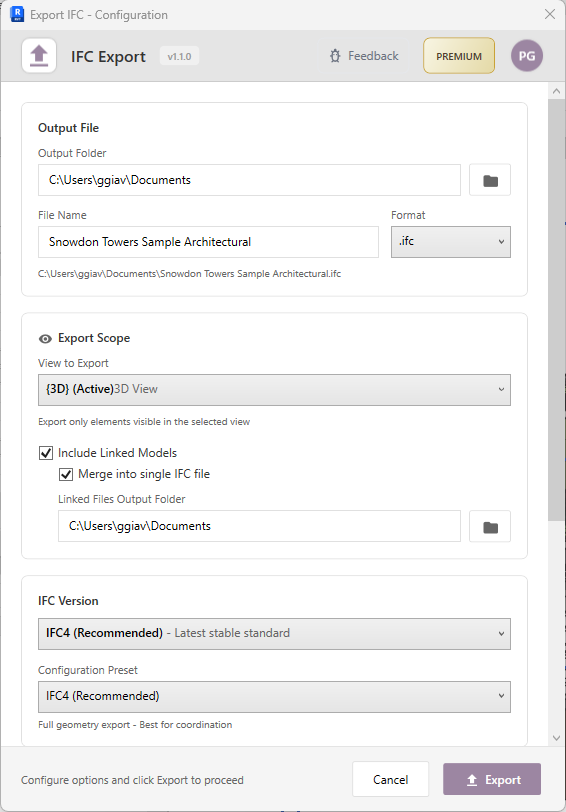
The UNIBIM IFC Export plugin does exactly this when you select the linked models option. It automatically exports all linked models to IFC with a single click, handling all the complexity transparently.
How it works#
The plugin implements a robust strategy that bypasses the Revit API limitation:
1. Discovery
First, it scans the host document and enumerates all linked Revit files, filtering by visibility in the current view if you prefer.
2. Silent copy and open
For each linked file, the plugin copies the .rvt to a temporary folder. This handles edge cases like cloud links (Autodesk Construction Cloud, BIM 360) and server paths. Then it opens each copy as an independent document — detached from central, no worksharing locks, completely isolated.
3. Export to IFC
With the link opened as an independent document, the IFC export now works correctly. The plugin exports each model, preserving shared coordinates for proper positioning in federated viewers.
4. Optional merge
For users who need a single federated IFC file, the Premium plan includes an intelligent merge feature that combines all exported IFC files into one. This uses an optimized algorithm that's orders of magnitude faster than traditional methods for large models.
5. Cleanup
Finally, the plugin removes all temporary files, leaving you with clean IFC outputs in your chosen folder.
All of this happens automatically. You configure your options once, click Export, and the plugin handles 5 or 50 linked models the same way.
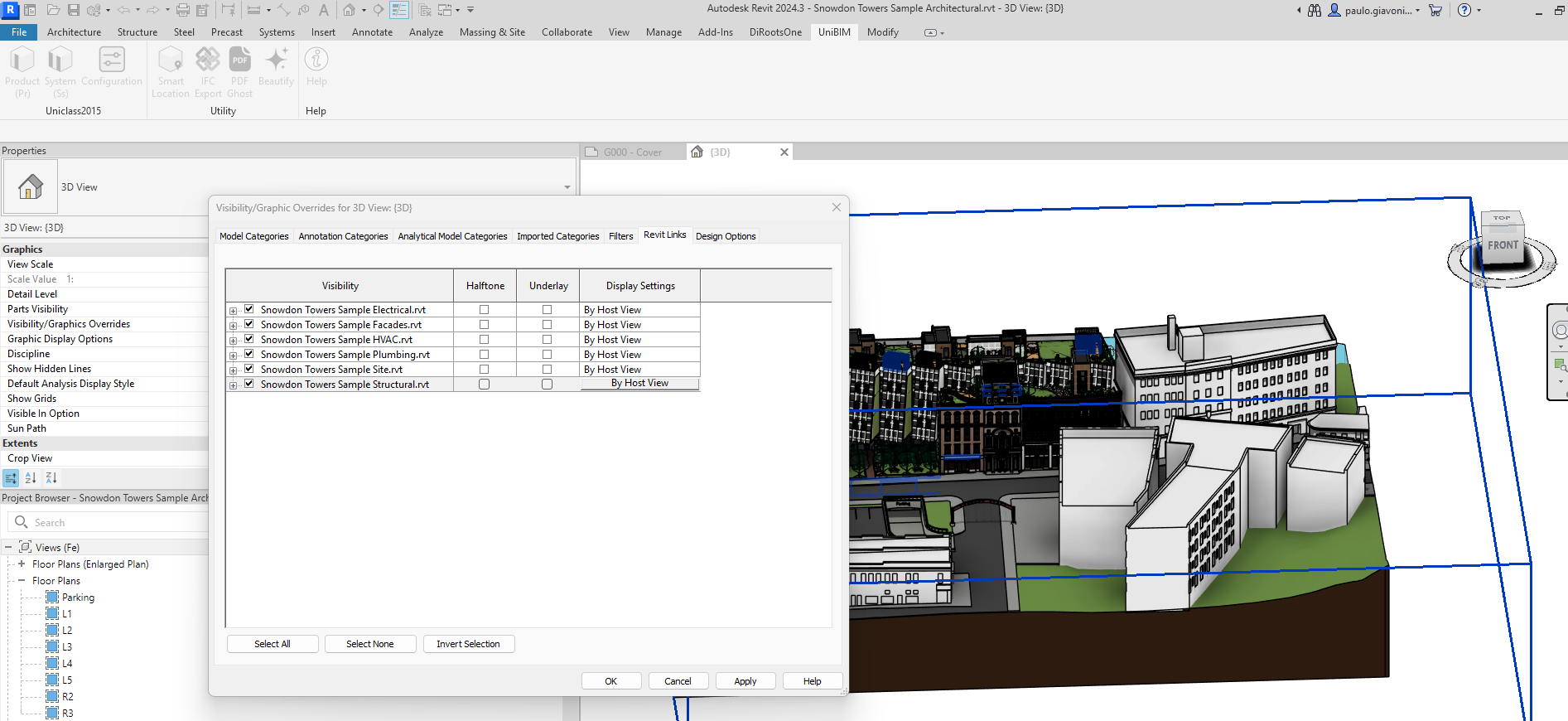
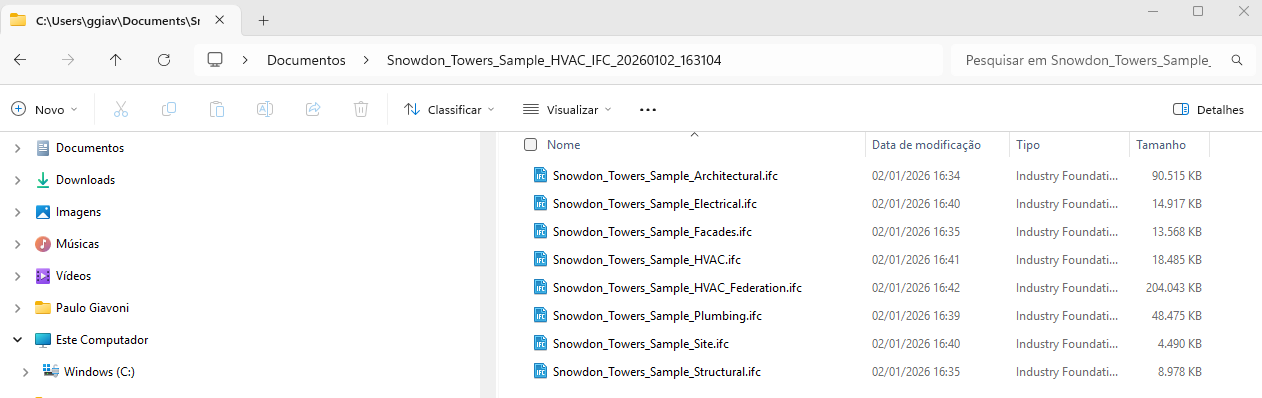
Below is a practical example using Autodesk sample models. In this setup, each discipline is delivered as a separate linked model. Using the IFC Export feature, all linked models were exported individually into a single folder, followed by a final merge into one consolidated IFC file.
Cloud links? No problem#
One of the trickiest aspects of modern Revit workflows is handling cloud-based links from Autodesk Construction Cloud (ACC) or BIM 360. Files stored in the cloud have special URI paths that don't map directly to local files.
The plugin handles this by:
- Detecting cloud path patterns (
Autodesk Docs://,BIM 360://) - Automatically locating the synced files via Desktop Connector
- Providing clear error messages when files need to be synced locally
- Falling back to in-memory export when possible
Free vs Premium#
The IFC Export feature is available in two tiers:
Free:
- Export the host model (single model export)
- Full IFC version support (IFC2x3, IFC4, IFC4x3)
- Category mapping and property sets
Premium:
- Everything in Free
- Export all linked models automatically
- Merge into single federated IFC
- Cloud link support (ACC/BIM 360)
Try it yourself#
If you've ever lost hours manually exporting linked models, give this a try. The difference is night and day.
Export for single models is completely free. For projects with linked models — which is most real-world projects — the Premium subscription pays for itself in the first use.
Download it here: download page.
Have questions about federated IFC export? Leave a comment below or reach out to our support team at support@unibim.io
Questions or Feedback?
I'd love to hear your thoughts on this article. Reach out directly and let's start a conversation.
Follow me on LinkedIn for more BIM tips and updates